๐Ÿš€ NEW: FollowGrid๋กœ Instagram ํŒ”๋กœ์›Œ ๋ฐ ํŒ”๋กœ์ž‰ ๋ชฉ๋ก์„ ๋‚ด๋ณด๋‚ด์„ธ์š”.
FollowGrid ์‚ฌ์šฉํ•ด ๋ณด๊ธฐ

How to Copy YouTube Comments in Bulk to Excel or Sheets

byMarshall SunSep 15, 20265 min read
How to Copy YouTube Comments in Bulk to Excel or Sheets

To copy YouTube comments in bulk, paste a public video link into the YouTube Comment Exporter, review the available comments, and download a CSV. Open the file in Excel or Google Sheets, then copy the comments you need into your report.

Use the export to collect audience questions for your next video or review feedback from a campaign.

Open the YouTube Comment Exporter

For a single comment, selecting and copying the text may be enough.

How to copy YouTube comments with CommentGrid

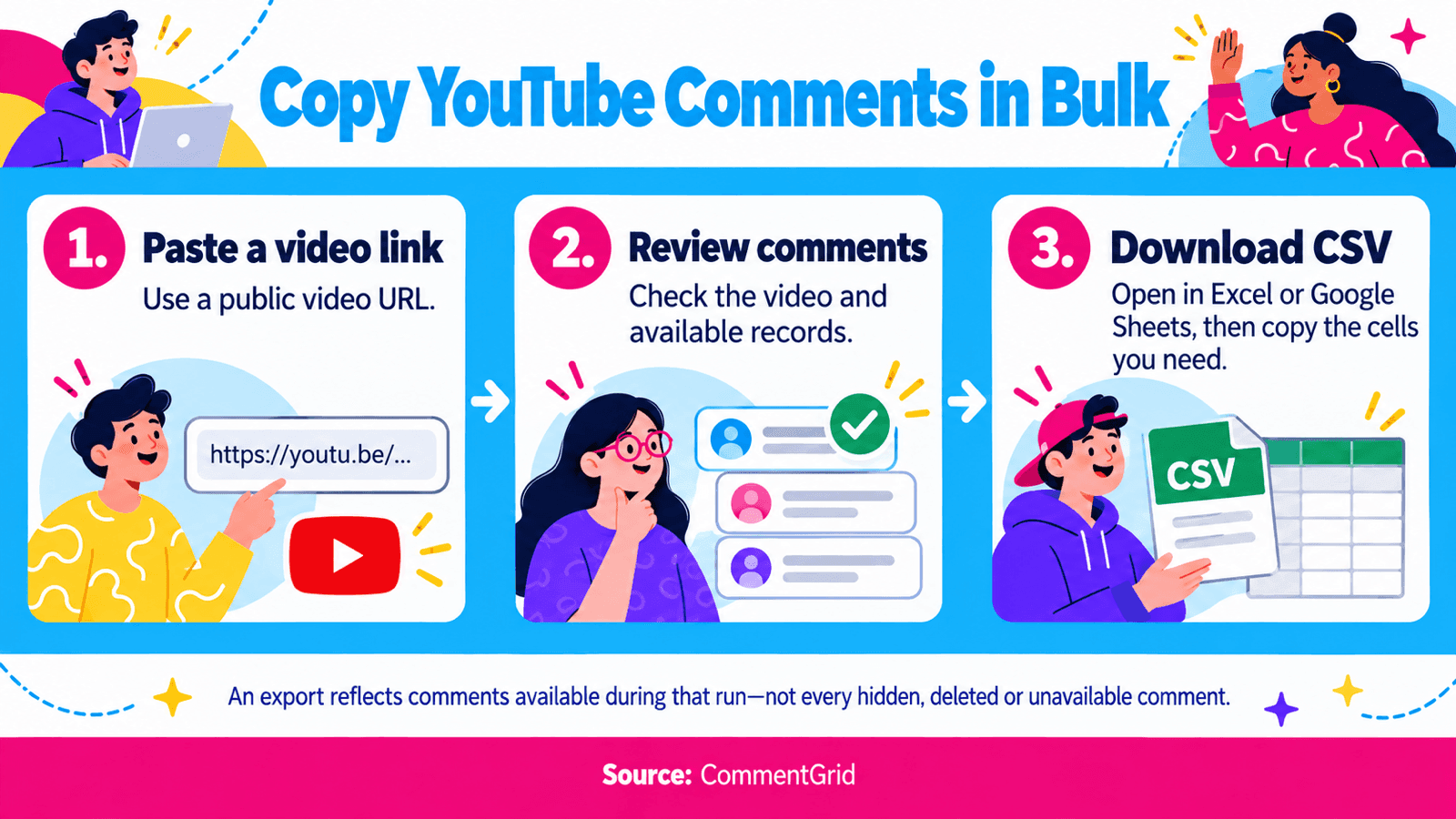
Three steps to copy YouTube comments: paste a video link, review available comments, and download a CSV for a spreadsheet.

No YouTube API key or browser extension is required.

1. Paste the YouTube video link

Copy the URL of the public video you want to work with. Open the CommentGrid YouTube Comment Exporter, paste the link into the video URL field, and select Start Export.

Use the individual video's URL, rather than a channel or search-results page.

2. Review the available comments

Before downloading, check that the results are from the right video and contain the comments you need.

Depending on what the tool can retrieve, the export can include comment text, author details, publishing time, likes, reply count, and a comment URL.

3. Save the file and copy what you need

Download a CSV and open it in Excel or Google Sheets. Copy selected comment cells into your destination, or keep the rows together if you also need author and source information.

Start with your YouTube video link

When is bulk copying worth using?

Exporting is useful when you need to compare comments across a discussion. Keep the source details you will need for your project:

Your taskWhat to keep with the comment
Collect questions for a follow-up videoTopic, question text, and a source link
Prepare a campaign reportRelevant feedback, author, and collection date
Review reactions to a productProduct feature, feedback category, and context
Share examples with a teammateExact wording, source, and your interpretation

For a camera comparison video, you might group questions under battery life and overheating. Keep a source link beside each comment so you can revisit the thread when preparing your answer.

Copy comments into Excel, Google Sheets, or a content brief

For Excel or Google Sheets

Keep the downloaded data as your source sheet. Make a working copy before adding labels or removing rows.

Add only the columns your project needs. A simple Topic, Needs a response, and Note setup may be enough for content planning.

For a document or team discussion

Copy a small selection of relevant comments with their available source links. Add one sentence explaining why you selected them.

For example: โ€œThese comments ask whether the setup works in a small room. We should address room size in the next tutorial.โ€

For a content brief

Workflow for turning comments into a content brief: keep sources, group questions, check threads, and plan follow-up content.

Group similar questions, then return to the original threads before proposing an answer. A reply may add an important qualification or show that the question has already been resolved.

Turn recurring questions into specific sections for your next video or FAQ. Keep your summary separate from the audience's exact wording so the brief does not accidentally turn a paraphrase into a quote.

For detailed file-format and import instructions, see how to export YouTube comments to Excel or CSV.

Can you copy all comments from a YouTube video?

Treat an export as a record of the comments available during that run. Hidden, deleted, private, or otherwise unavailable comments may be missing. Reply coverage and processing conditions can also affect the result.

A reply count is not proof that the file contains every reply's text. Check the returned rows before describing a discussion as complete.

For a report, record the video URL and collection date alongside the file. If you select comments to illustrate a theme, describe them as selected examples rather than presenting them as a representative survey of everyone who watched the video.

What if you only need to copy one YouTube comment?

On a computer, expand the comment, select its text, and copy it normally. On a phone, if the text cannot be selected, a screenshot with Apple Live Text or Google Lens can help extract the words. Check the result for recognition errors.

To keep a direct reference, open the comment's posting timestamp in a browser and copy the resulting address. YouTube documents this as a highlighted-comment link.

Frequently asked questions

Does this copy comments straight to my clipboard?

This method downloads a CSV first. Open it in Excel or Google Sheets and copy the cells you need.

Should I keep the author's name when copying comments?

Keep enough information to verify a comment and its context in your working records. When sharing examples, include only the author details your audience needs. The comment's source link can be useful for checking the original discussion.

Copy comments from your next YouTube video

Paste a public YouTube video URL into the exporter to download the available comments as CSV.

Open YouTube Comment Exporter

Marshall SunM

Marshall Sun

Building CommentGrid to decode social conversations. Exploring the signal within the noise of the global social web.


๊ด€๋ จ ๊ธ€

TikTok ๋Œ“๊ธ€: ์‚ฌ์ง„, ์Œ์„ฑ ๋Œ“๊ธ€ & ํˆฌํ‘œ ์‚ฌ์šฉ ๋ฐฉ๋ฒ•

TikTok ๋Œ“๊ธ€: ์‚ฌ์ง„, ์Œ์„ฑ ๋Œ“๊ธ€ & ํˆฌํ‘œ ์‚ฌ์šฉ ๋ฐฉ๋ฒ•

TikTok ๋Œ“๊ธ€์— ์‚ฌ์ง„, ์Œ์„ฑ ๋Œ“๊ธ€, ํˆฌํ‘œ๋ฅผ ์ถ”๊ฐ€ํ•˜๋Š” ๋ฐฉ๋ฒ•๊ณผ ๊ธฐ๋Šฅ์ด ๋ณด์ด์ง€ ์•Š์„ ์ˆ˜ ์žˆ๋Š” ์ด์œ , ๋„์šฐ์ธ์˜ ์ดˆ๊ธฐ ์ถœ์‹œ๊ฐ€ ํฌ๋ฆฌ์—์ดํ„ฐ์—๊ฒŒ ์‹œ์‚ฌํ•˜๋Š” ์ ์„ ์•Œ์•„๋ณด์„ธ์š”

Unknown9๋ถ„ ์ฝ๊ธฐ
YouTube ํ†ต๊ณ„ 2026: ์‚ฌ์šฉ์ž, Shorts, ์ˆ˜์ต ๋ฐ ํŠธ๋ Œ๋“œ

YouTube ํ†ต๊ณ„ 2026: ์‚ฌ์šฉ์ž, Shorts, ์ˆ˜์ต ๋ฐ ํŠธ๋ Œ๋“œ

YouTube ์‚ฌ์šฉ์ž, Shorts, ์ˆ˜์ต, ๋Œ“๊ธ€ ๋ฐ ์ฐธ์—ฌ๋„์— ๊ด€ํ•œ ํ†ต๊ณ„๋ฅผ ๋‚ ์งœ๊ฐ€ ๋ช…์‹œ๋œ ์ถœ์ฒ˜์™€ ํ•จ๊ป˜ ์‚ดํŽด๋ณด๊ณ , ์‹œ์ฒญ์ž ํ”ผ๋“œ๋ฐฑ์„ ์ฝ˜ํ…์ธ  ์•„์ด๋””์–ด๋กœ ์ „ํ™˜ํ•˜๋Š” ์‹ค์šฉ์ ์ธ ๋ฐฉ๋ฒ•์„ ์•Œ์•„๋ณด์„ธ์š”.

Unknown16๋ถ„ ์ฝ๊ธฐ
์ธ์Šคํƒ€๊ทธ๋žจ ๋Œ“๊ธ€์„ CSV ๋˜๋Š” Excel๋กœ ๋‚ด๋ณด๋‚ด๋Š” ๋ฐฉ๋ฒ•

์ธ์Šคํƒ€๊ทธ๋žจ ๋Œ“๊ธ€์„ CSV ๋˜๋Š” Excel๋กœ ๋‚ด๋ณด๋‚ด๋Š” ๋ฐฉ๋ฒ•

๊ณต๊ฐœ ๊ฒŒ์‹œ๋ฌผ๊ณผ ๋ฆด์Šค์˜ ์ธ์Šคํƒ€๊ทธ๋žจ ๋Œ“๊ธ€์„ CSV ๋˜๋Š” JSON์œผ๋กœ ๋‚ด๋ณด๋‚ด์„ธ์š”. Excel์—์„œ CSV๋ฅผ ์—ฌ๋Š” ๋ฐฉ๋ฒ•, ๋‹ต๊ธ€ ํ™•์ธ, ๋ˆ„๋ฝ๋œ ๋Œ“๊ธ€ ๋ฌธ์ œ ํ•ด๊ฒฐ ๋ฐฉ๋ฒ•์„ ์•Œ์•„๋ณด์„ธ์š”.

Unknown8๋ถ„ ์ฝ๊ธฐ
์ „์ฒด ๊ธ€ ๋ณด๊ธฐ