9 min read
The replies under a Threads post are often the most useful part of it: product questions, complaints, feature requests, people arguing about your launch in public. Once a post pulls in a few hundred of them, copying them into a spreadsheet by hand stops being realistic.
The fastest way to get them out is a Threads reply extractor:
- Copy the URL of a public Threads post.
- Paste it into the CommentGrid Threads Reply Extractor.
- Extract and review the public replies.
- Remove duplicates or repeated reply text.
- Download the cleaned data as CSV or JSON.
No Threads login, no Meta account connection, no browser extension.
Can you export replies from Threads?
Threads has no download button for a post's replies. You can read them in the app or on the web, and that's about it.
Meta does offer an official way to download a copy of your Threads information. That gives you an archive of your own account data, and it can take a while to prepare. It's not built for "give me the replies under this one post as a spreadsheet."
For a single public conversation, an extractor is the direct route: paste the post URL, collect the publicly visible replies, review them, export.
Threads replies vs. comments: are they the same?
Threads officially calls them "replies," but plenty of people search for "Threads comments" or "export Threads comments." Same thing. Everyone means the public responses posted under a post.
One difference worth knowing: a reply can start its own conversation. Per Meta's explanation of how replies on Threads work, a reply shows up in the author's Replies tab and other people can reply to it. So an active post is often a tree of nested conversations, not a flat comment list — which is exactly why scrolling and copying by hand breaks down.
How to export Threads replies with CommentGrid

Step 1: Copy the Threads post URL
Open the public post you want to collect replies from. Use the share option to copy the link, or grab the URL from your browser's address bar.
It looks like this:
https://www.threads.com/@username/post/POST_ID
Make sure it's the link to the individual post, not the creator's profile page. That's the most common mistake.
Step 2: Open the Threads Reply Extractor
Go to the CommentGrid Threads Reply Extractor, paste the URL, and start the extraction.
It's a standalone web tool. No Threads or Instagram login, no Meta account, no API key, no extension, no scrolling through hundreds of replies yourself.
The tool collects the publicly available replies and shows them as a structured list.
Step 3: Review the extracted replies
Look at the results before you download anything.
You'll get reply text plus whatever public author information Threads returns. The exact columns vary — what Threads exposes publicly isn't identical from post to post, so don't build a workflow that assumes every field will always be there.
Reviewing first lets you catch the usual suspects: repeated replies, empty responses, obvious spam, rows missing data because the platform didn't return it.
If you're doing research or campaign reporting, keep an untouched copy of the raw results. You'll want the audit trail later.
Step 4: Remove duplicate replies
Threads conversations accumulate repeated text: accidental double-posts, people answering a giveaway twice, the same short reply from different users.
CommentGrid lets you drop duplicate entries or hide repeated reply text before export. Which rule to use depends on what the data is for:
- Audience research: remove identical reply text so repeated messages don't skew your topic or sentiment counts.
- Campaign reporting: keep legitimate individual responses, drop records created by repeated submissions.
- Giveaway entry list: decide up front whether it's one entry per user or one per valid reply, then apply that rule to everyone.
- Archiving: keep everything, repetition included — it's part of the original conversation.
One caution: two people posting the same short answer isn't the same as a duplicated row. "Love this" from fifty different accounts is fifty real replies.
Step 5: Export as CSV or JSON
Once the data looks clean, download it in the format that fits.
CSV if the replies are headed for a spreadsheet — Excel, Google Sheets, Numbers, Airtable. Sorting, filtering, tagging, pivot tables, sharing with a team that just wants a file.
JSON if the data is headed somewhere technical — a database, a script, an analytics pipeline, or AI-assisted analysis where you want a structured machine-readable record.
What information can you extract?
CommentGrid returns the publicly available reply rows from the post: reply text, available public author information, and whatever other structured fields Threads returns for that post.
Fields vary by post, and the extractor only sees what's public. It doesn't touch private account information or surface anything Threads doesn't already show publicly.
Why export Threads replies?
1. Analyze customer feedback
A launch post attracts praise, complaints, questions, and feature requests all mixed together. Judging the reaction from the five replies Threads happens to show you first is a good way to be wrong.
Export the replies, add a category column in your spreadsheet, and label each one: positive, negative, question, feature request, support issue, spam. Then count. The pattern that emerges is usually different from the one the visible comments suggested.
2. Find new content ideas
Repeated questions are demand signals. If a dozen people ask how a feature works, that's your next tutorial, FAQ entry, or short-form video — already validated by real interest.
Scrolling a long conversation, you'll miss the pattern. In an exported dataset you can sort and see it in seconds.
3. Improve campaign reporting
"300 replies" is a vanity metric. A report that says what those 300 replies actually contained is evidence.
After exporting, you can count usable replies, unique participants, the most common questions, sentiment split, and replies showing purchase intent. That's the difference between reporting activity and reporting results.
4. Build a customer reply queue
Not every reply deserves the same attention, and Threads gives you no way to triage. Export the replies, tag them (urgent support, sales question, feedback, already answered), add owner and status columns, and the spreadsheet becomes a lightweight response queue your team can actually work from.
5. Research audience language
The exact words people use in replies belong in your product pages, ads, and FAQs. Look for how they describe the problem they're solving, why they hesitate, what they call your product category — it's usually not your marketing language.
Use this as research input. Don't lift individual replies into your copy without context.
6. Archive important conversations
Replies get edited, deleted, hidden. Saving a structured export gives you a dated record of the public conversation as it existed at extraction time — useful for campaign documentation, research, or moderation records.
How to analyze Threads replies in Google Sheets or Excel
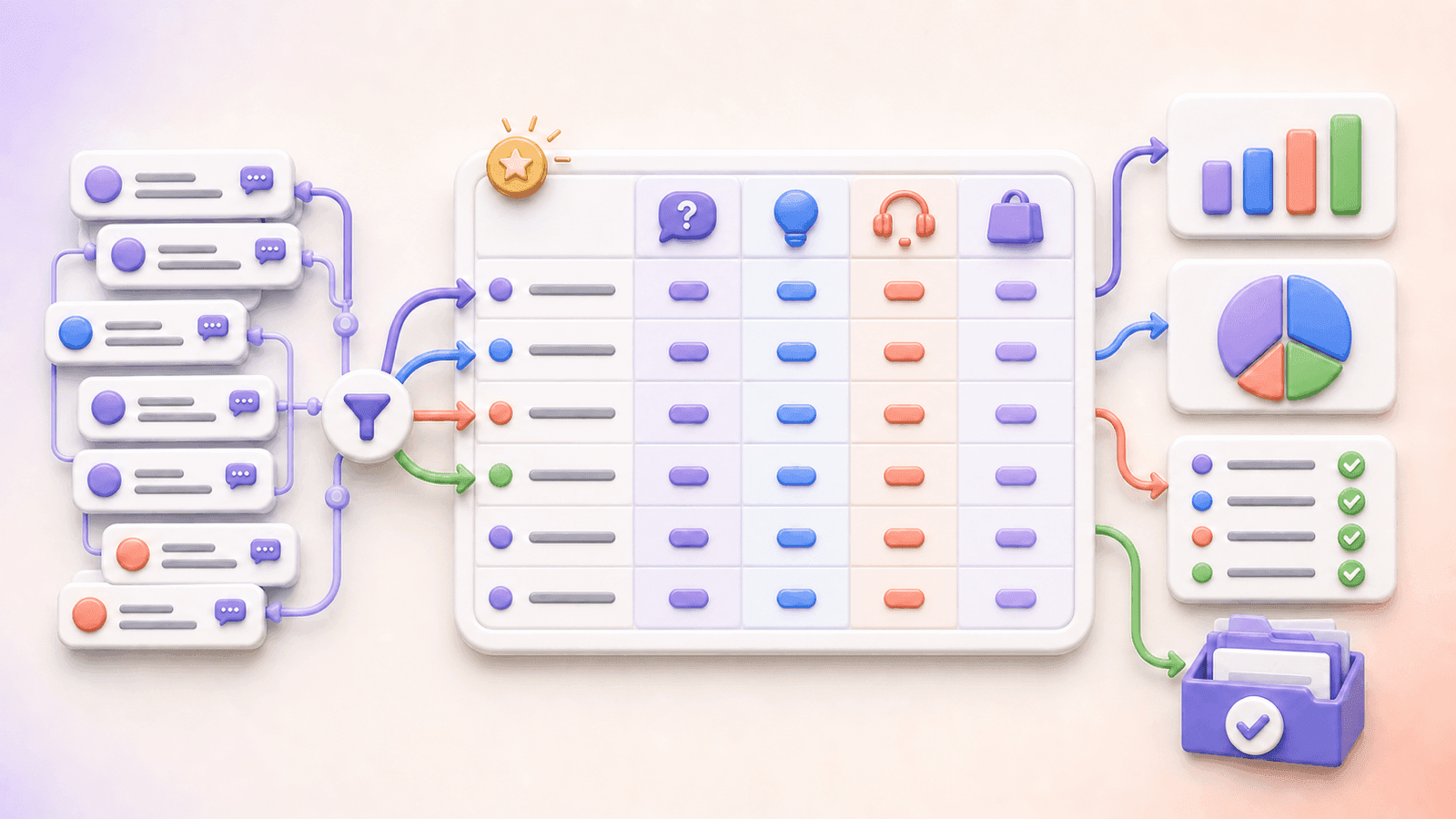
Work on a copy
Keep the original export untouched. Do your cleaning and analysis in a second worksheet so a stray edit never corrupts your source data.
Add classification columns
| Column | Purpose |
|---|---|
| Topic | Groups replies by subject |
| Sentiment | Positive, neutral, negative, mixed |
| Intent | Question, feedback, support need, purchase interest |
| Priority | What needs attention first |
| Status | Reviewed, answered, or pending |
| Notes | Context that doesn't fit anywhere else |
Filter for questions
Search the reply-text column for question marks and terms like "how," "where," "price," "link," or "ship." Crude, but it surfaces most replies that need an answer in under a minute.
Count repeated topics
Build a pivot table over your topic or sentiment columns. A launch report might come out as: 42 product questions, 28 positive reactions, 17 pricing requests, 8 support issues. That tells you what to do next. The raw reply count doesn't.
Read the context before drawing conclusions
Keywords lie. Sarcasm, slang, emoji, and multilingual replies all break keyword-level reading, so before you publish any statistic or act on it, go read a sample of the actual replies.
Threads reply extractor vs. manual copying
| Method | Advantages | Limitations |
|---|---|---|
| CommentGrid Threads Reply Extractor | Fast, structured, no login, duplicate cleaning, CSV and JSON export | Limited to replies publicly available during extraction |
| Manual copy and paste | No tool needed | Slow, easy to miss replies, inconsistent formatting |
| Screenshots | Preserves visual context | Can't search, sort, count, or analyze |
| Meta account-data download | Official archive of your own account data | Not built for exporting replies from one public post |
| Custom Threads API workflow | Flexible for approved developer use cases | Requires technical setup, permissions, and maintenance |
For ten replies, copy them by hand. Past that, structured extraction wins on both speed and accuracy.
Does the tool extract every Threads reply?
No — and be skeptical of any tool that claims otherwise. The extractor collects what's publicly available when the extraction runs. Replies from private accounts, deleted replies, moderated or hidden replies, and anything Threads doesn't publicly return won't be in your file.
So the post's displayed reply count may not match your export. When you document results, say exactly what you have:
The dataset contains the publicly available replies retrieved from the Threads post on August 12, 2026.
Don't claim the file contains every reply unless you've independently verified it.
Privacy and responsible use
Public doesn't mean consequence-free. A few ground rules:
- Collect only what your purpose actually requires.
- Don't combine public replies with sensitive personal information.
- Limit access to raw datasets, strip identifiers before sharing, and delete files when you're done.
- Don't use the data to harass, profile, or target individuals.
- Check the privacy, research, and platform rules that apply to you.
If you publish examples, paraphrase or remove usernames unless attribution is genuinely necessary.
Common extraction problems
The tool says the URL is invalid
Check that the link points to an individual post, not a profile, search page, or copied text fragment. Open it in a private browser window to confirm the post is publicly accessible.
No replies are returned
Usually one of these: the post has no public replies, the account or post is private, the post was deleted, replies are restricted or hidden, or the URL was copied wrong. Occasionally Threads itself is temporarily limiting access — try again later.
The export has fewer replies than expected
The reply count Threads displays includes content that may no longer be publicly retrievable — deleted, moderated, private, or nested replies. A gap between the count and the export is normal.
Some author fields are missing
Fields depend on what Threads publicly returns per reply. A missing value doesn't mean the extraction failed.
Duplicate replies appear in the results
Review the rows and apply the cleanup option that matches your purpose — remove duplicate records, repeated text, or both. (See Step 4 for how to decide.)
The CSV looks wrong in Excel
Import it through Excel's data-import feature and select UTF-8 encoding. That preserves emoji, accented characters, and multilingual text. Double-clicking the file open is what usually mangles it.
Frequently asked questions
How do I extract replies from a Threads post?
Copy the URL of a public post, paste it into the CommentGrid Threads Reply Extractor, and start the extraction. Review the results and download them as CSV or JSON.
Can I export Threads replies without logging in?
Yes. CommentGrid works with public post URLs and never asks you to sign in to Threads, Instagram, or any Meta account.
Do I need to install a browser extension?
No. It's a standalone web tool — nothing to install.
Can I export Threads replies to Excel?
Yes. Download the CSV and open it in Excel, Google Sheets, Numbers, Airtable, or any spreadsheet app.
Can I export replies as JSON?
Yes. JSON is available for databases, scripts, internal applications, and automated analysis workflows.
Can I remove duplicate Threads replies?
Yes. After extraction you can remove duplicate entries or hide repeated reply text before downloading.
Can the tool access private replies?
No. It only collects replies that are publicly accessible from the post you give it.
Can it recover deleted or hidden replies?
No. Deleted, hidden, private, or restricted replies are gone as far as extraction is concerned.
Can I extract replies from someone else's public post?
The tool works with any publicly accessible post URL. Whether and how you use that data is on you — make sure it complies with applicable laws, platform rules, and basic research ethics.
Does it export every reply?
It exports the replies publicly available at extraction time. Moderation, deletion, privacy settings, or temporary platform limits can make the export smaller than the count shown on Threads.
What can I do with exported Threads replies?
Audience research, feedback analysis, campaign reporting, reply triage, content planning, qualitative research, and archiving.
Export Threads replies in three steps
You don't need to copy a long Threads conversation into a spreadsheet by hand.
With the CommentGrid Threads Reply Extractor: paste a public post URL, review and clean the replies, download CSV or JSON. Done.
 M
MMarshall Sun
Building CommentGrid to decode social conversations. Exploring the signal within the noise of the global social web.