9 min read
To export your Instagram following list, request your Followers and following information through Instagram’s Accounts Center. For a CSV you can open in Excel or Google Sheets, use FollowGrid: enter the profile, select Following, choose how many accounts to collect, and download the results.
The right method depends on whose list you need. Instagram’s official export gives you your own account information. FollowGrid works with the account lists available to your Instagram browser session.
Following means the accounts a profile follows. Followers means the accounts following that profile. If you need the second list, use our Instagram followers export guide.
Choose a Method for Your Following List
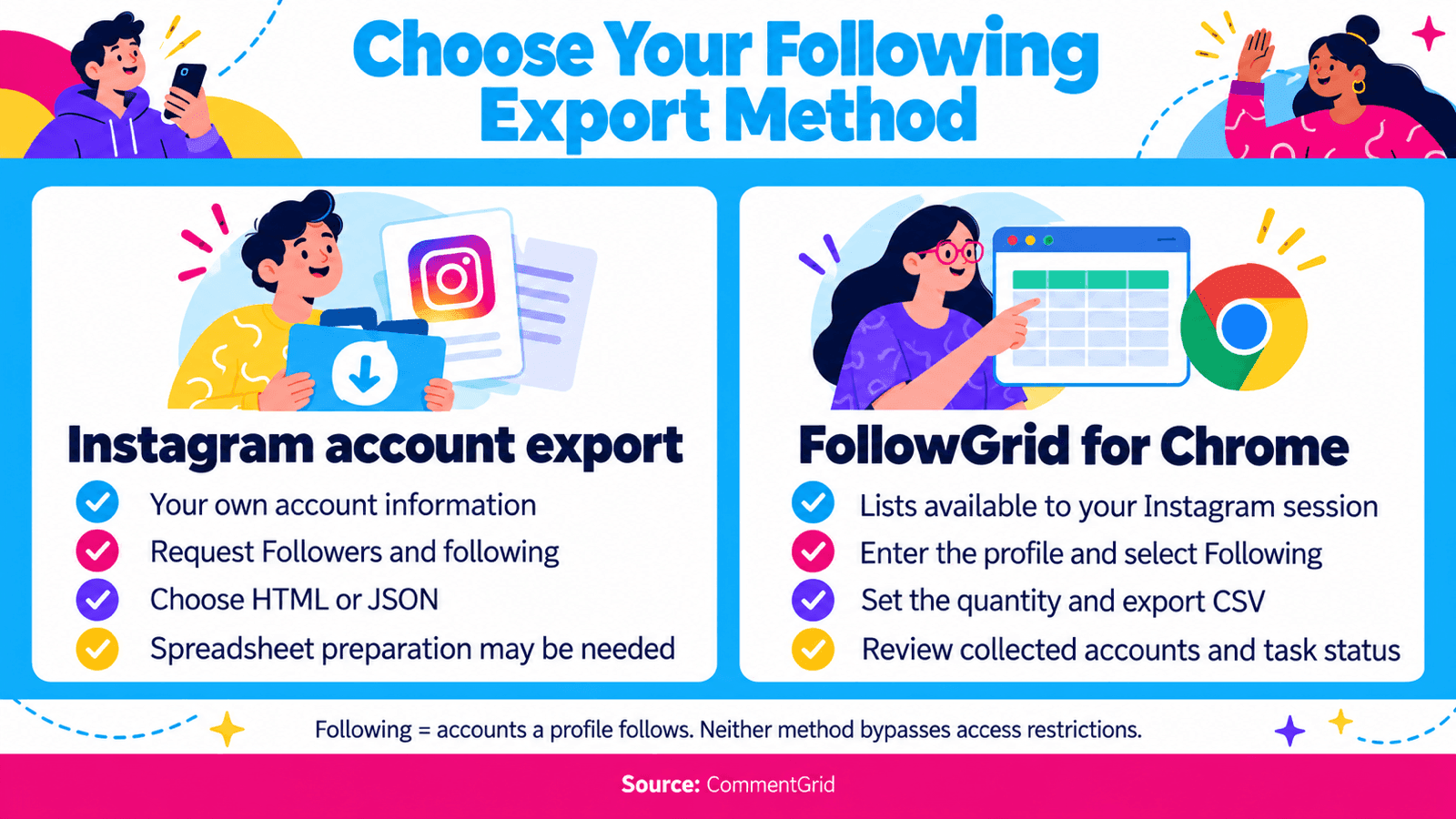
| What You Need | Method | What to Expect |
|---|---|---|
| A free copy of your own following information | Instagram’s official account export | An account archive; HTML is useful for reading, while JSON is useful for processing. Spreadsheet preparation may be needed. |
| A following list in CSV | FollowGrid for Chrome | A file of successfully collected accounts, subject to the current export limit and Instagram access. |
| A few profile links for a small research task | Copy them manually from Instagram | A short list you build yourself, rather than a complete export. |
For your own account archive, start with the official method below. For the CSV workflow, go to Export a Following List With FollowGrid.
Download Your Own Following List From Instagram
Instagram’s account export is the free option for information associated with your own profile. It does not let you request another person’s private account archive.
Request the Account Export
- Open Instagram’s settings and go to Meta Account or Accounts Center, depending on the version shown to you.
- Open Your information and permissions, then Export your information. Older interfaces may use Download your information.
- Select Create export, choose your Instagram profile, and continue.
- Choose Export to device.
- Customize the information to include Followers and following. Leave unrelated categories unchecked if you only need the lists.
- Choose All time for the date range. Select HTML for a readable archive or JSON for structured processing, where offered.
- Start the export. When it is ready, return to the available downloads and save the file.
Meta is gradually moving users to Meta Account settings, so both menu names can appear. Its official Instagram export instructions explain the current route. Preparation time varies; check the download deadline shown when your file becomes available.
Find the Following File
Keep the original ZIP, then extract a working copy. Look for the connections or followers-and-following folder and the file containing following, rather than followers. The filename and folder layout may vary between exports.
If you chose HTML, open the following page in a browser. For a small list, copy the account entries into a spreadsheet and separate usernames, links, and any dates into their own columns. Check a few rows against the archive before using the table.
If you chose JSON, the data needs to be parsed into rows before it becomes a usable spreadsheet. Renaming .json to .csv will not convert it. Keep using the archive if you need its original structure; use the CSV method below if your priority is a file ready for spreadsheet work.
Export a Following List With FollowGrid
FollowGrid is CommentGrid’s Instagram followers and following extension. It provides a CSV route for reviewing who an accessible profile follows, without copying each profile link by hand.
1. Install FollowGrid and Sign In to Instagram
Install FollowGrid from the Chrome Web Store. Open Instagram in the same Chrome browser and sign in there. FollowGrid uses that existing session; you do not enter your Instagram password into the extension.
2. Enter the Profile You Want to Export
Open FollowGrid and enter the Instagram username or profile URL. For a profile link, use this format:
https://www.instagram.com/username/
Check that it identifies the intended account. A post or Reel URL points to content, rather than to the profile whose following list you want.
3. Select Following and Set the Quantity
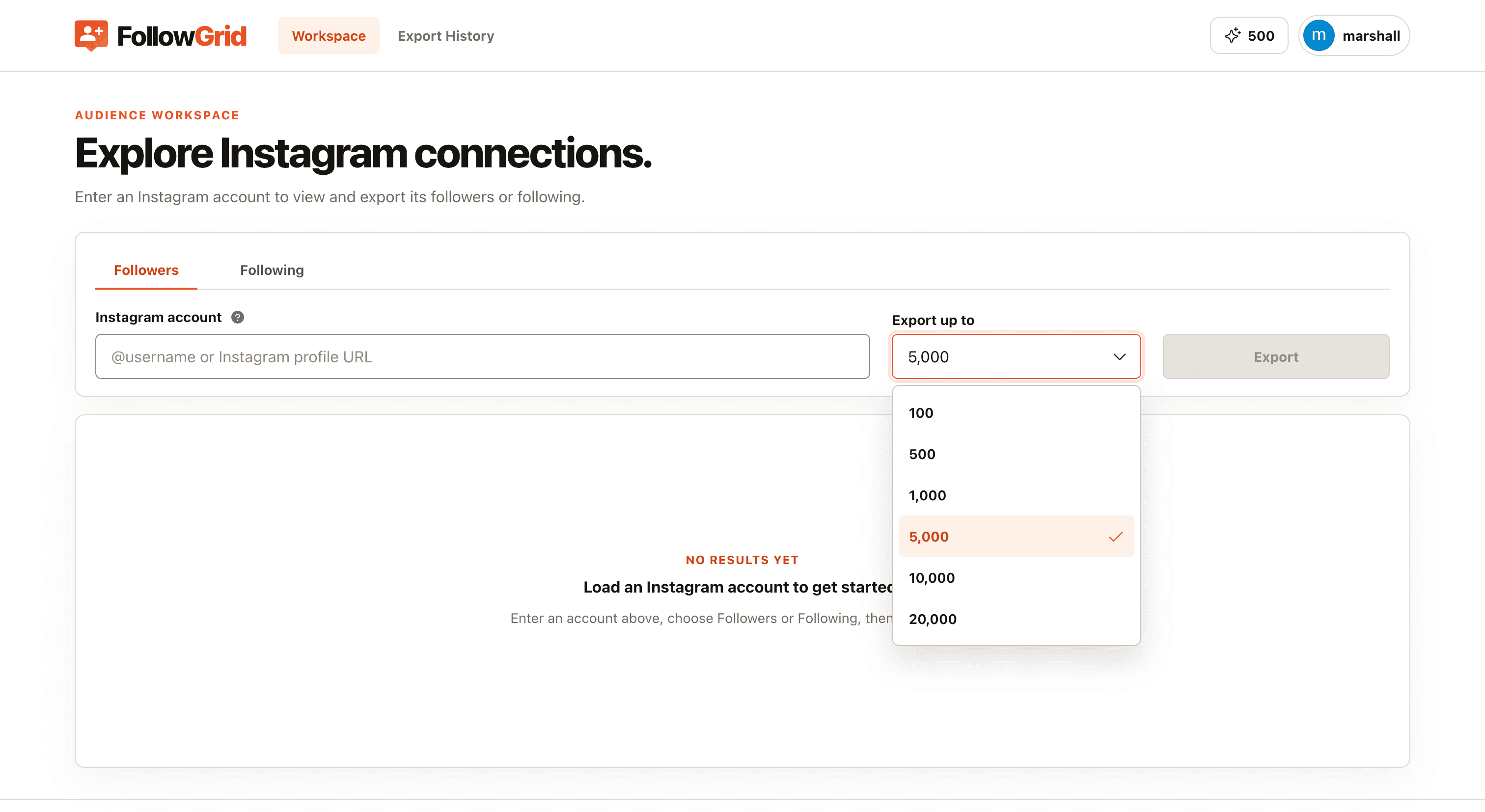
Choose Following in the list selector. Then set how many accounts you want to collect and start the export.
Check the limit displayed in your current version before starting. The selected quantity is a collection target, not a promise that Instagram will return that many accounts.
4. Review the Results and Download CSV
Review the returned accounts and save the results as CSV. Note how many accounts were collected and whether the export completed or stopped early.
Use a filename that identifies the source and collection date, such as brandname_following_YYYY-MM-DD.csv. Keep the original file and do your sorting or cleanup in a copy.
A public profile can still have access or retrieval limits. If a list is unavailable to your session, an exporter cannot make that access available simply because you entered the username.
Open Your Following List in Excel or Google Sheets
CSV is a text format that spreadsheet apps can read. You do not need a native Excel download to work with the list in Excel.
In Excel
Open a workbook and use Data → From Text/CSV, or your version’s text import option. Select the file and inspect the preview. Use a comma delimiter and UTF-8 encoding when applicable.
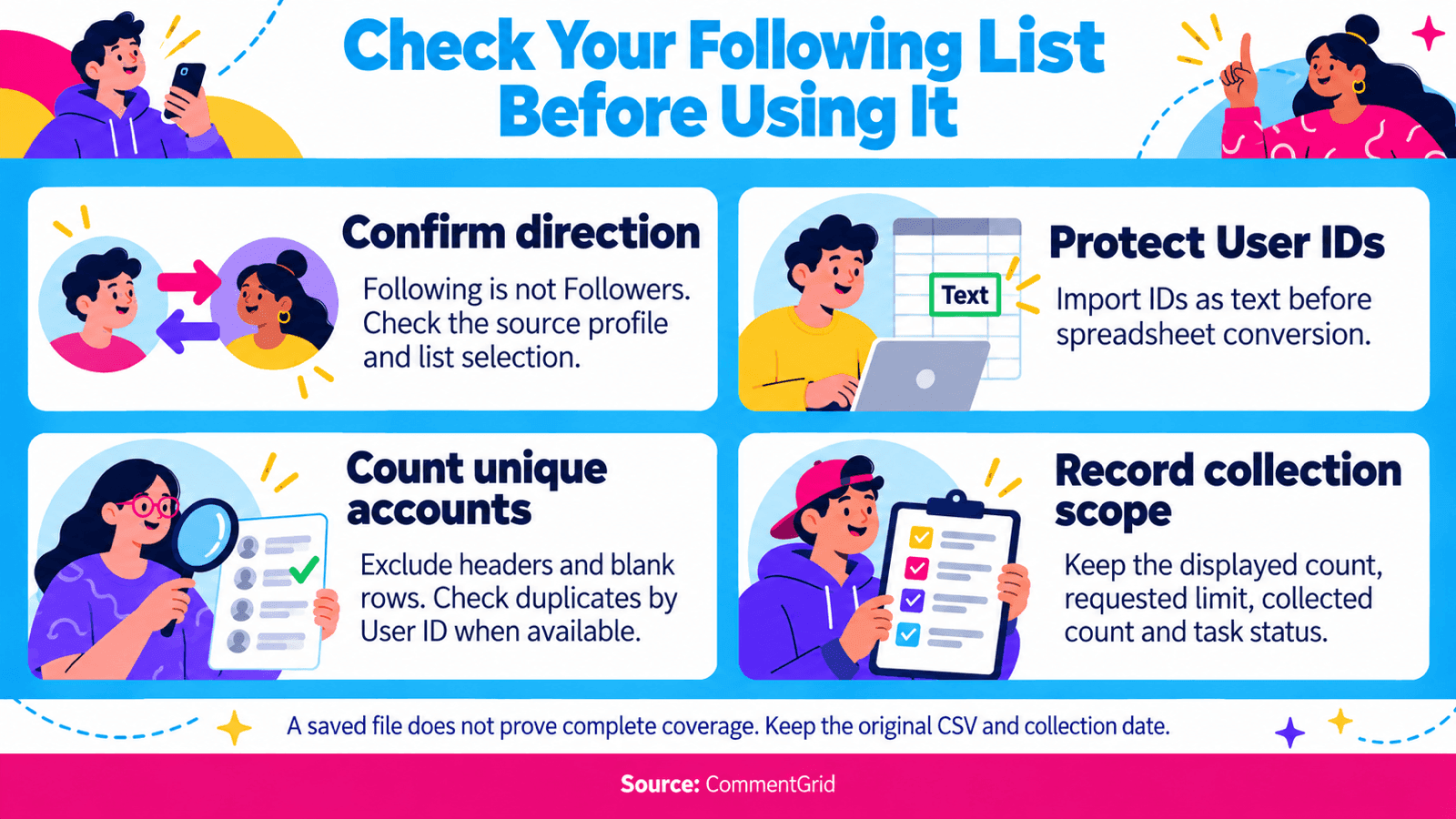
If the export includes User ID, import that column as Text before loading the data. Excel can change long numeric identifiers when it treats them as numbers. Formatting an already altered ID as text does not restore lost digits; reimport the original file with the correct type. See Microsoft’s instructions for preserving long numbers.
After importing, save an .xlsx copy if you want to retain formatting, filters, formulas, or multiple worksheets.
In Google Sheets
Create a spreadsheet, choose File → Import → Upload, and select your CSV. Choose an import location and confirm the separator before importing. Google’s import guide covers these options.
Check that usernames, profile links, and IDs occupy separate columns. If numeric conversion changed an identifier, return to the original CSV and import it with automatic conversion disabled where that option is available.
Check the List Before You Use It
Start with the column headers in your downloaded file. FollowGrid’s listed profile details include usernames, profile links, user IDs, avatars, and verification status; available values can vary.
| Field | What to Check |
|---|---|
| Username | Spot-check a few accounts against the intended profile’s Following list. |
| Profile URL | Confirm that the link points to the corresponding Instagram profile. |
| User ID | Preserve it as text; use it for matching when both files contain it. |
| Verified | Treat it as a returned account attribute, not a relevance or quality score. |
Then check three things:
- The list direction. A Followers export can look similar to a Following export. Confirm the selection you used.
- The unique row count. Count account rows, excluding the header and blank rows. Check duplicates by User ID when present, otherwise by normalized username.
- The collection scope. Record the profile’s displayed Following count, your requested limit, the collected count, and whether the task finished.
For example, if a profile shows 820 Following and you request 500 accounts, a file with 500 unique rows may have reached your selected limit. It is still a partial list of that profile. These figures are an illustrative example, not a FollowGrid benchmark.
If you request more than the displayed count but receive fewer rows, inspect the task status and access conditions before concluding that accounts are missing. A finished download confirms that a file was saved; it does not by itself establish complete coverage.
Use CommentGrid Alongside a Following Export
Choose the data source that matches your next question:
| Your Question | Where to Go |
|---|---|
| Which accounts does this profile follow? | FollowGrid with Following selected. |
| Which accounts follow this public profile? | CommentGrid’s Instagram Follower Exporter, or a separate FollowGrid Followers export. |
| What are people saying under a particular post or Reel? | CommentGrid’s Instagram Comment Extractor. |
For creator research, use the following export to build a shortlist, then review relevant public posts and their comments with CommentGrid. Keep profile-list findings and comment findings separate: following a creator does not prove someone reads their posts, engages with them, or has a business relationship with them.
If you want to check who does not follow you back, collect both your Following and Followers lists. Compare matching user IDs when available, or normalize usernames before comparing them. A row present only in Following is a candidate for review; an incomplete Followers file can create a false mismatch. This is a file comparison you perform after export, not an automatic result from the CommentGrid follower tool.
Fix Common Following Export Problems
| Problem | What to Check |
|---|---|
| The file contains the wrong people | Confirm the source profile and that you selected Following. |
| The export returns fewer accounts than expected | Check the selected quantity, completion status, and whether Instagram made the list available. |
| FollowGrid cannot access the list | Confirm Instagram is signed in in the same browser. Open the target profile and check whether the list is accessible there. |
| The official archive has no following data | Check that you selected the correct profile and Followers and following category. Inspect the extracted archive, not just its top-level folder. |
| Everything appears in one spreadsheet column | Reimport the CSV with the correct delimiter. |
| User IDs look different after opening the file | Reimport the original IDs as text before any numeric conversion. |
If Instagram asks you to wait or complete an account check, resolve that prompt before trying another export. Repeatedly starting the same task does not resolve an access restriction.
Frequently Asked Questions
Can I Export My Instagram Following List for Free
Yes. Instagram’s official account export is the free route for your own information. It produces an archive that may need preparation for spreadsheet use. For a direct CSV through an exporter, check its current limits and pricing before starting.
Can I Export Someone Else’s Instagram Following List
Instagram’s official personal archive covers your own account. A tool such as FollowGrid can work with lists available to your logged-in session, subject to Instagram’s access rules and the tool’s limits. It does not bypass private-account restrictions.
Can I Export an Instagram Following List Without Logging In
The two workflows described here require Instagram access: the official export requires your account login, and FollowGrid uses your active Instagram browser session. Not being asked to type a password into an extension is different from not needing to be logged in.
Does the CSV Show When Someone Started Following Each Account
Do not interpret row order as follow dates. A one-time following export shows the accounts returned during collection. It does not establish when each relationship began or provide a history of every follow and unfollow.
Does Exporting the List Follow or Unfollow Anyone
Exporting with FollowGrid collects a list for download. It does not perform follow or unfollow actions. Review any account changes separately in Instagram.
Save Your Following List With FollowGrid
Open FollowGrid, select Following, and download the collected accounts as CSV. Keep the source profile and export date with the file so you can identify the snapshot when you return to it.
 M
MMarshall Sun
Building CommentGrid to decode social conversations. Exploring the signal within the noise of the global social web.