8 min read
To copy a social media post or video link, open the content and look for Share → Copy Link. On a computer, you can also open the individual post or video and copy the URL from your browser's address bar.
The exact button depends on the platform. Instagram may place it under Send or the three-dot menu; Facebook also lets you open a post through its date or time.
This guide covers Instagram, Facebook, TikTok, and YouTube on desktop web and in the iPhone and Android apps. If you use a browser on your phone, there is a separate method below.
The images below are illustrative UI reconstructions. Menus and button placement can differ by app version, device, or account.
Quick Reference
| Platform | Web on a Computer | Mobile App on iPhone or Android |
|---|---|---|
| Open the post → three-dot menu → Copy link | Open the post → Share or Send → Copy Link | |
| Click the post's date or time → copy the address bar | Open the post → Share → Copy link | |
| TikTok | Open the individual video → copy the address bar | Open the video → Share arrow → Copy link |
| YouTube | Open the video → Share → Copy | Open the video → Share → Copy link |
Copying a link puts it on your clipboard. Paste it into your message, document, or input field to use it. On a computer, press Ctrl + V on Windows or Command + V on Mac. On a phone, touch and hold the text field, then tap Paste.
How to Copy an Instagram Post Link
Start with the specific photo, carousel, or video you want to share. A profile URL opens the creator's account rather than that individual post.
Web
- Open Instagram in your browser and find the post.
- Click the post to open it.
- Click the three-dot menu next to the post.
- Choose Copy link. If your menu shows Share to… first, open it and look for Copy Link.
- Paste the link where you need it.
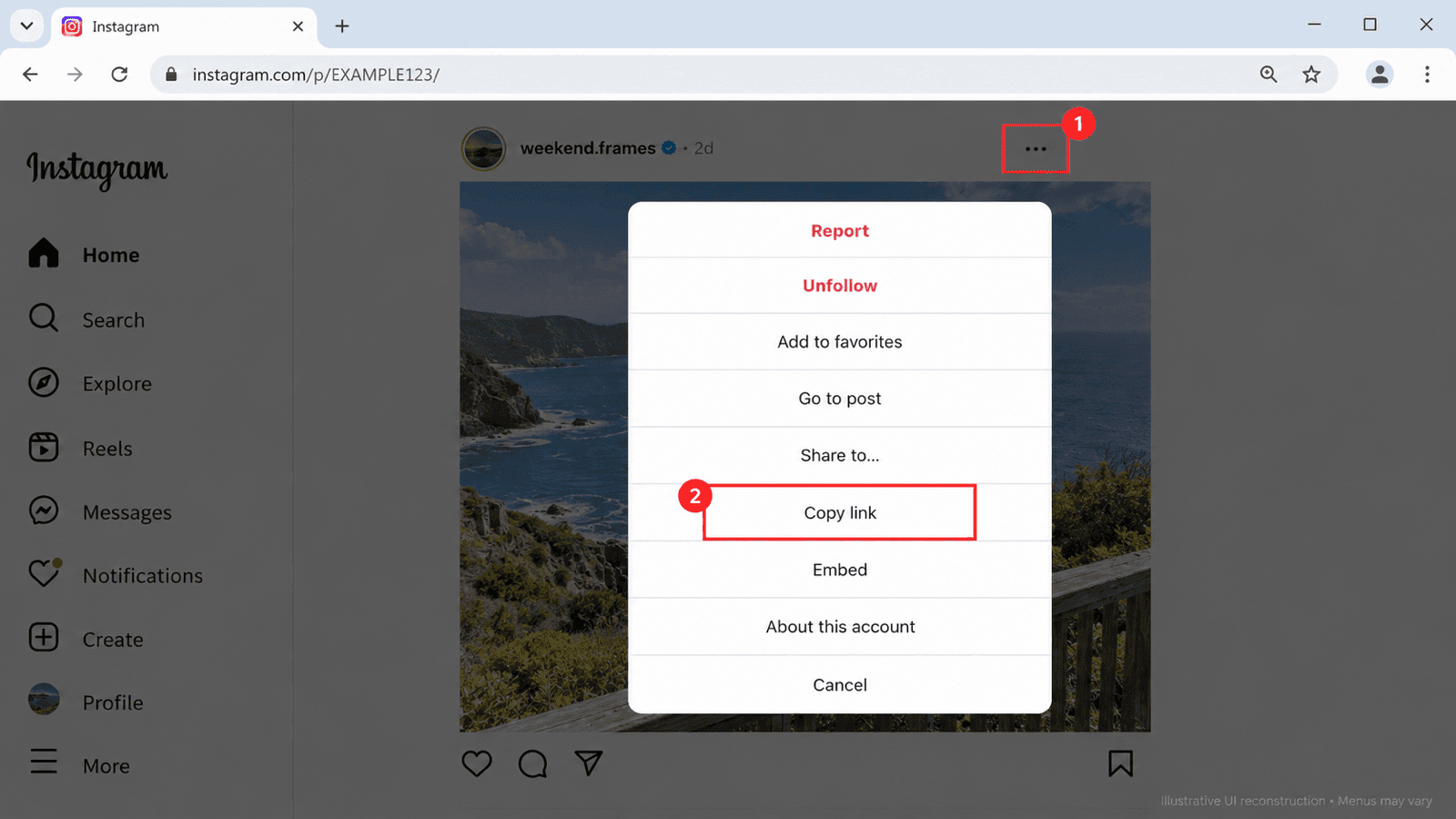
Instagram on the web: open the three-dot menu, then select Copy link.
You can also copy the address bar once the browser shows the individual post. For a Reel, open that Reel and copy its page address.
Mobile
- Open the Instagram app and find the post.
- Tap the Share or Send icon below it, often shown as a paper plane or arrow.
- Tap Copy Link in the sharing panel.
- Paste the URL into your destination.
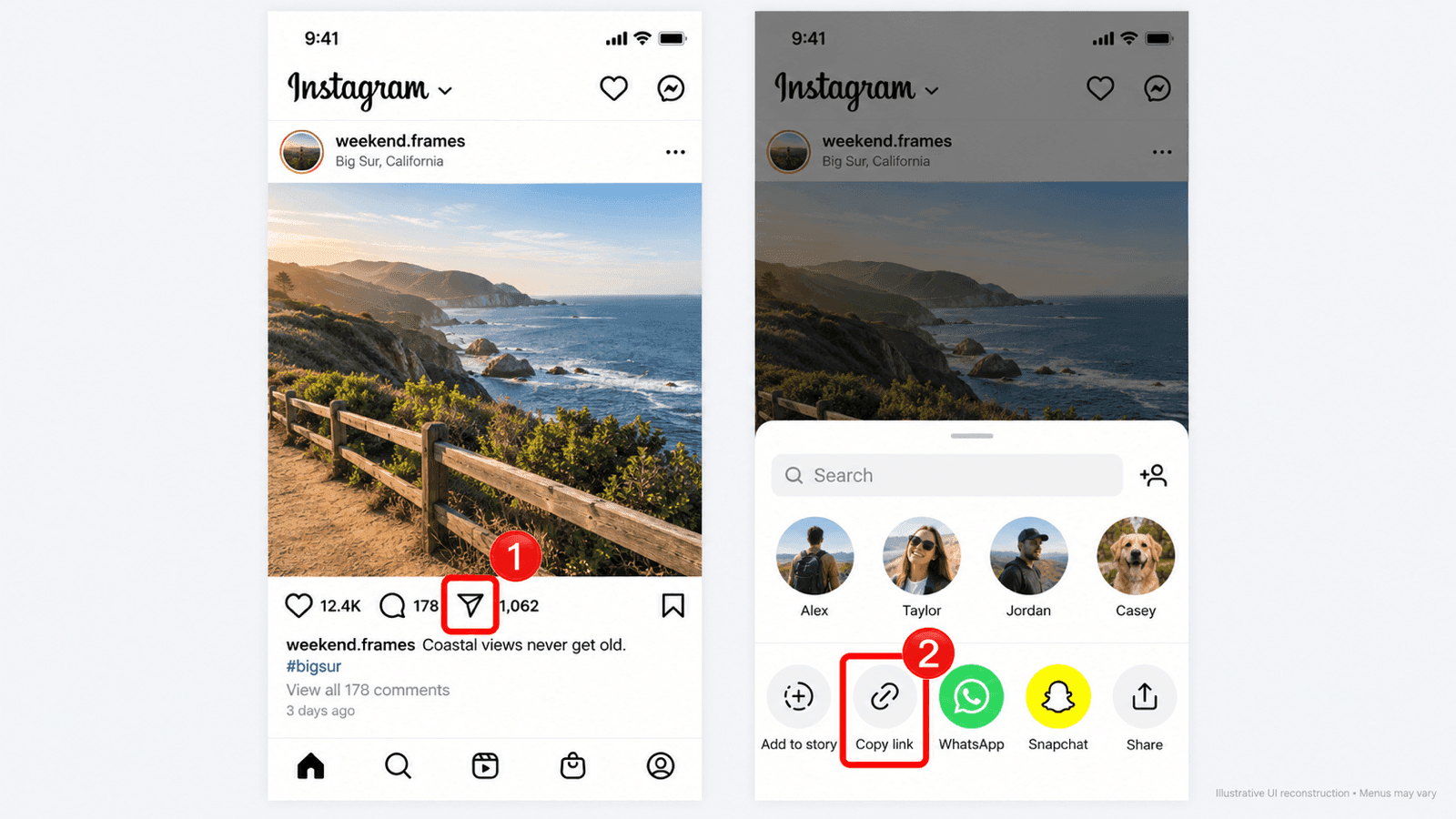
Instagram in the mobile app: open the sharing panel, then tap Copy link.
For a Reel, open its sharing panel and choose Copy Link if available. If you cannot find it, use the browser method above. Instagram moves sharing options between menus, so follow the labels visible on your screen. This Instagram post-link walkthrough also describes the Send and three-dot menu routes.
An Instagram post link commonly contains /p/; a Reel link commonly contains /reel/.
How to Find a Facebook Post URL
Facebook's post date or time is useful when you need a link to one exact post from a busy feed.
Web
- Open Facebook and find the post.
- Click the date or time under the author's or Page's name, such as 2h, Yesterday, or a calendar date.
- Once the post opens, copy its URL from the address bar.
- Paste that URL into your destination.
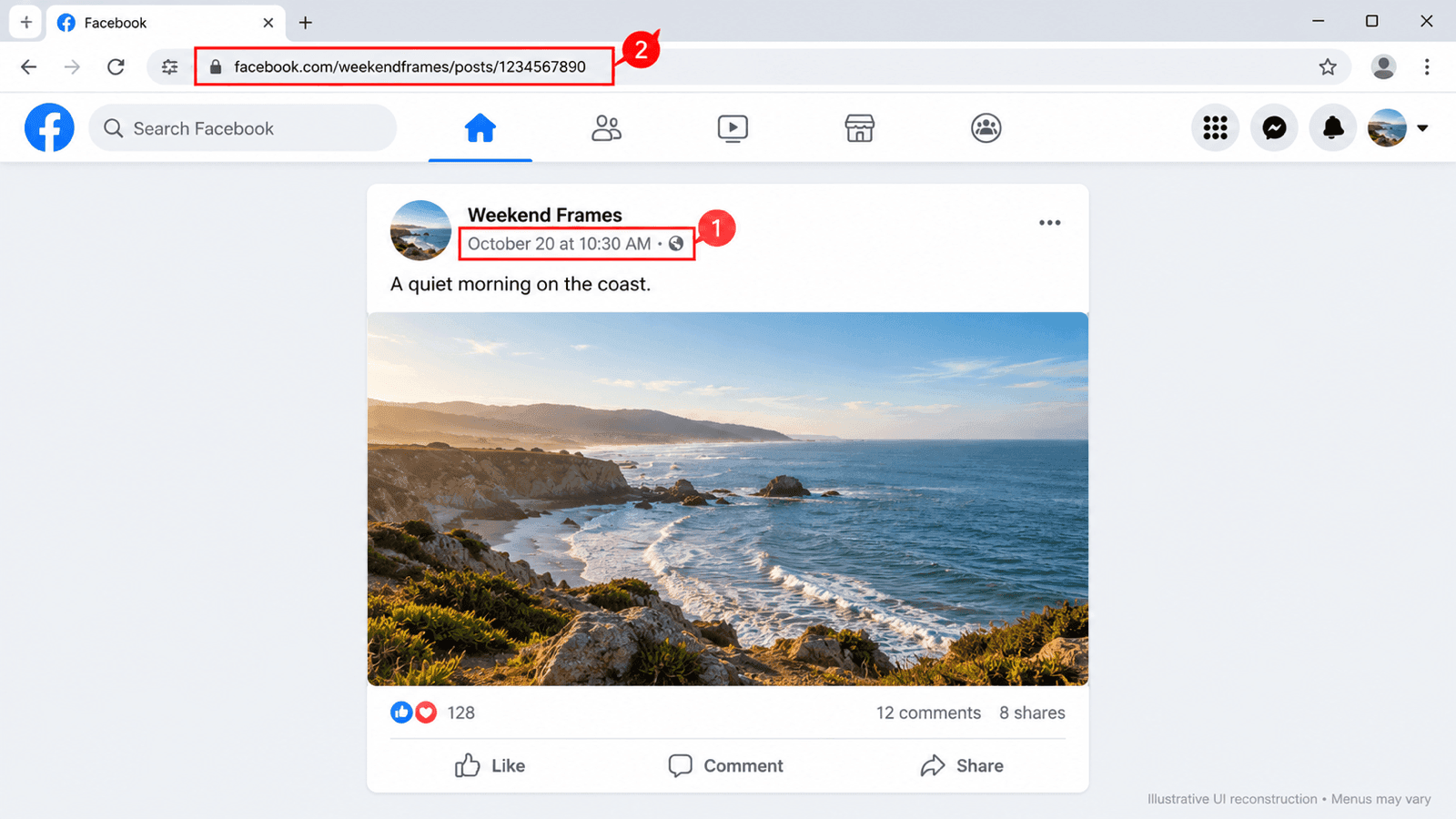
Facebook on the web: open the post through its timestamp, then copy its address.
You can also right-click the timestamp and choose Copy link address, or your browser's equivalent command.
Mobile
- Open the Facebook app and find the post.
- Tap Share beneath it.
- Select Copy link in the sharing options.
- Paste the copied link where you need it.
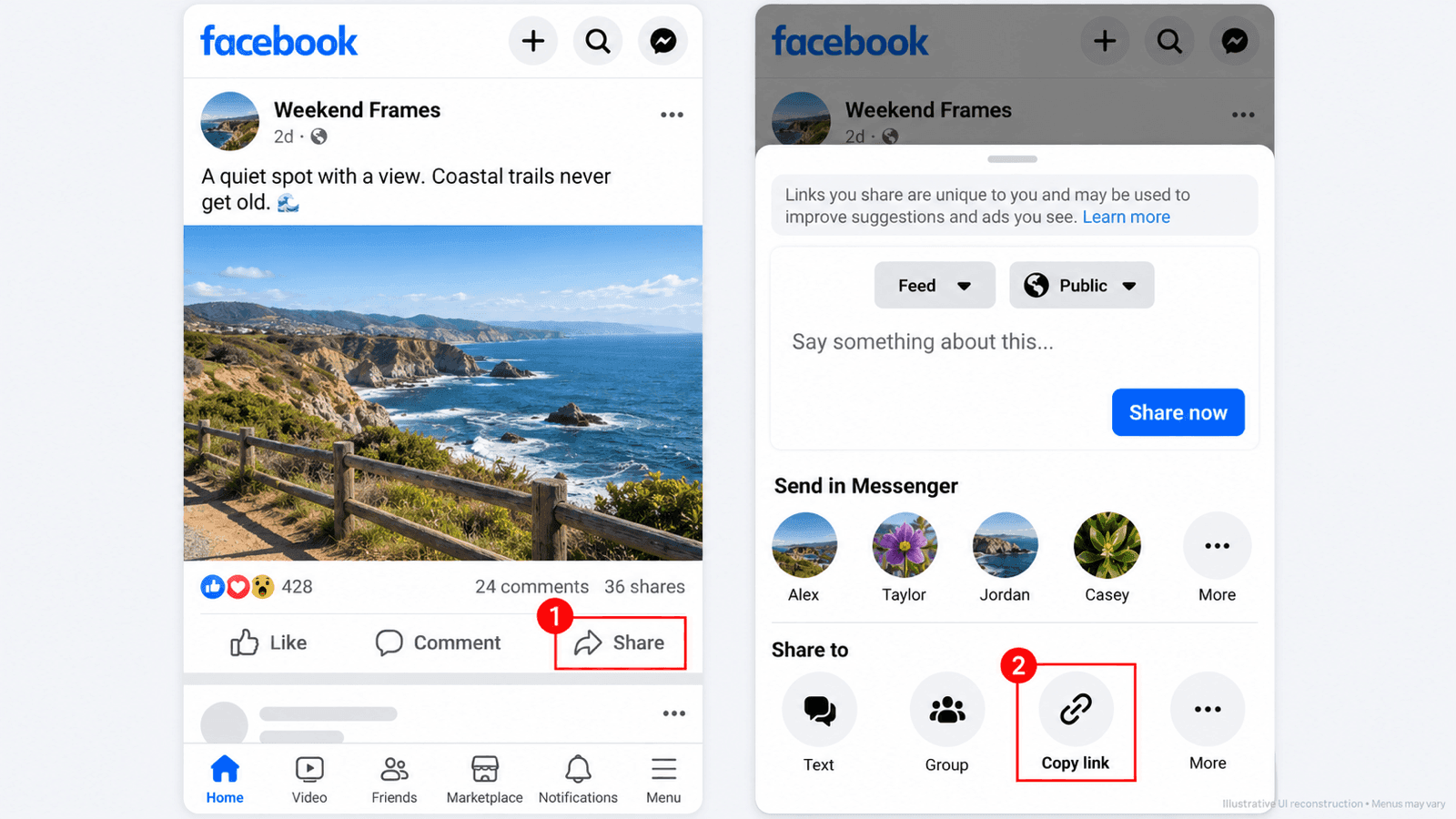
Facebook in the mobile app: tap Share, then choose Copy link.
If your sharing panel has a More option, look there for the copy action. Some versions use Copy to clipboard. The timestamp and mobile sharing methods are illustrated in this Facebook post-link guide.
Facebook may copy a short link containing /share/p/ instead of a longer post address. Both formats can point to an individual post; Comment Picker's guide shows examples of these variations. Test the destination before sending it.
When a post contains a preview of an external article, copy the Facebook post's link if you want the Facebook discussion. Clicking the article preview can take you to the publisher's website instead.
How to Copy a TikTok Link
Open the individual TikTok video first so the link leads to that content.
Web
- Open TikTok in your browser and find the video.
- Click the video to open its individual page.
- Copy the URL from the address bar. If a Copy link button is visible on the video page or in its sharing menu, you can use that instead.
- Paste the URL into your destination.
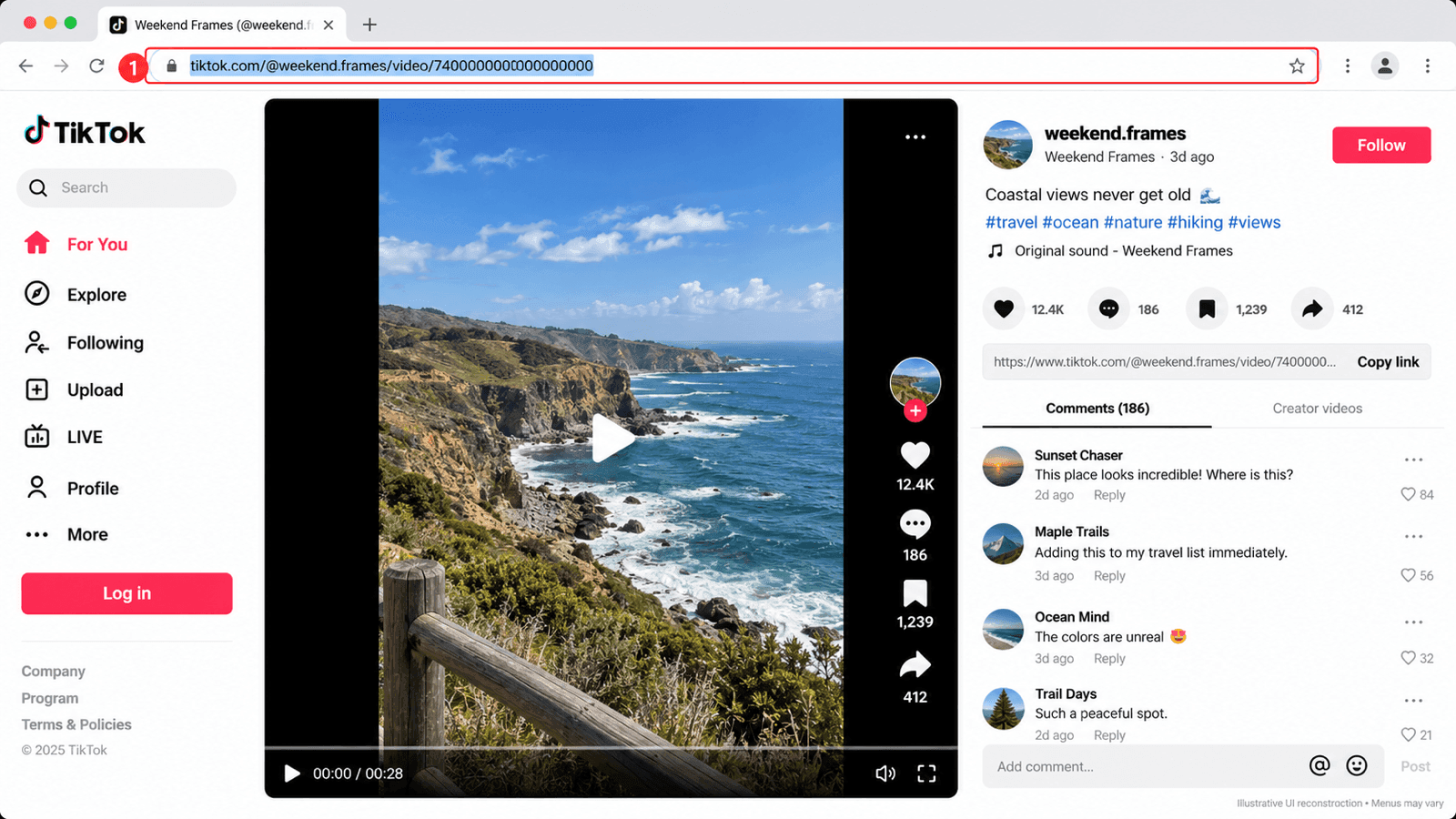
TikTok on the web: open the individual video and copy its address.
Mobile
- Open the video in the TikTok app.
- Tap the Share arrow, usually on the right side of the video.
- Choose Copy link. Swipe across the sharing options if the button is offscreen.
- Paste the link where you need it.
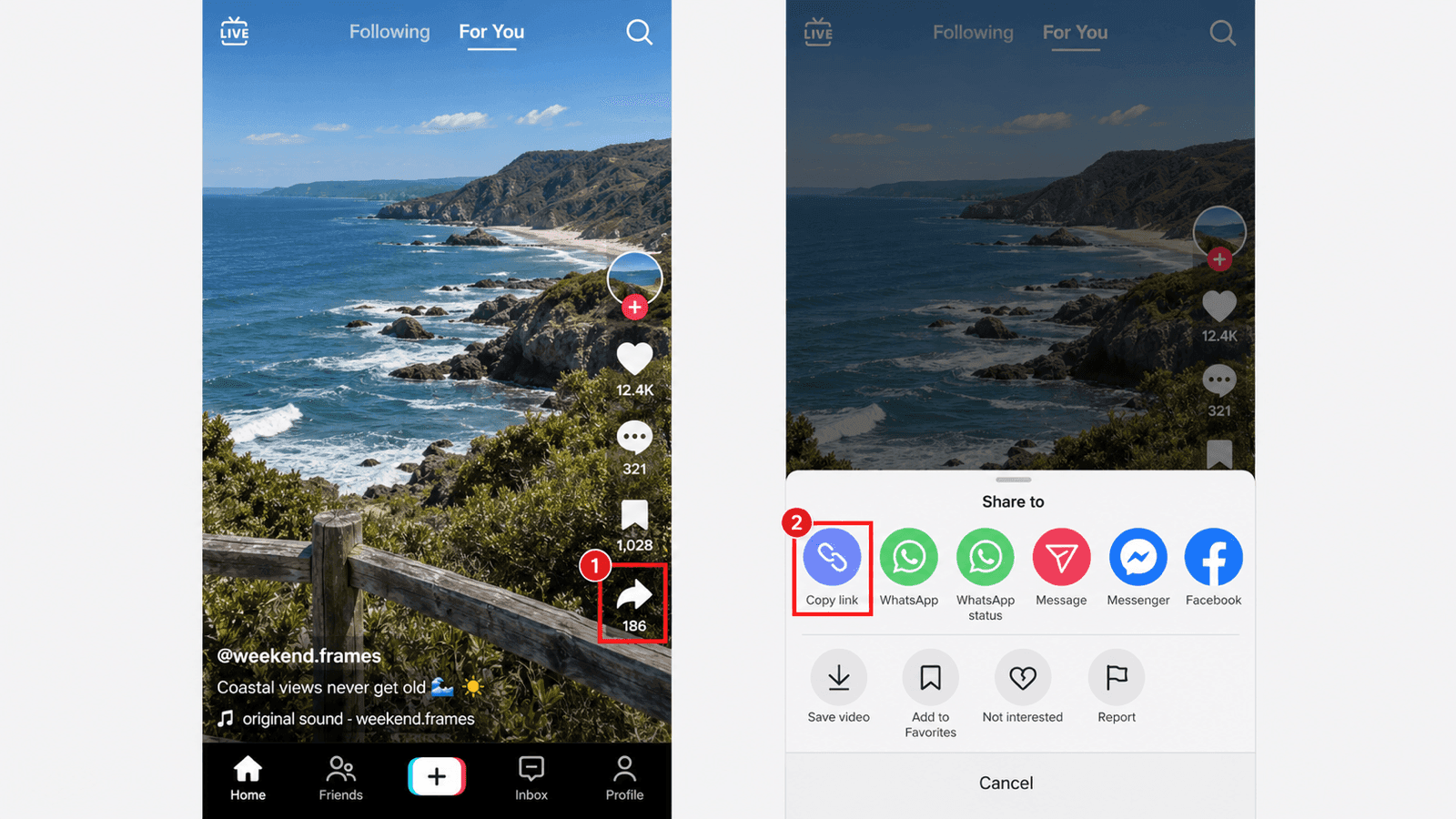
TikTok in the mobile app: tap the Share arrow, then choose Copy link.
These app and web routes are also covered in iTechGuides' TikTok link tutorial.
A full video address commonly includes /@username/video/. A copied mobile link may instead begin with vm.tiktok.com or vt.tiktok.com, which redirects to the content. Keep the complete link when pasting it.
How to Get a YouTube Video Link
Open the video itself before copying. A channel homepage, search-results page, or playlist page points to a different destination.
Web
- Open the video on YouTube.
- Click Share below the player.
- Click Copy beside the link in the sharing panel.
- Paste the URL where you need it.
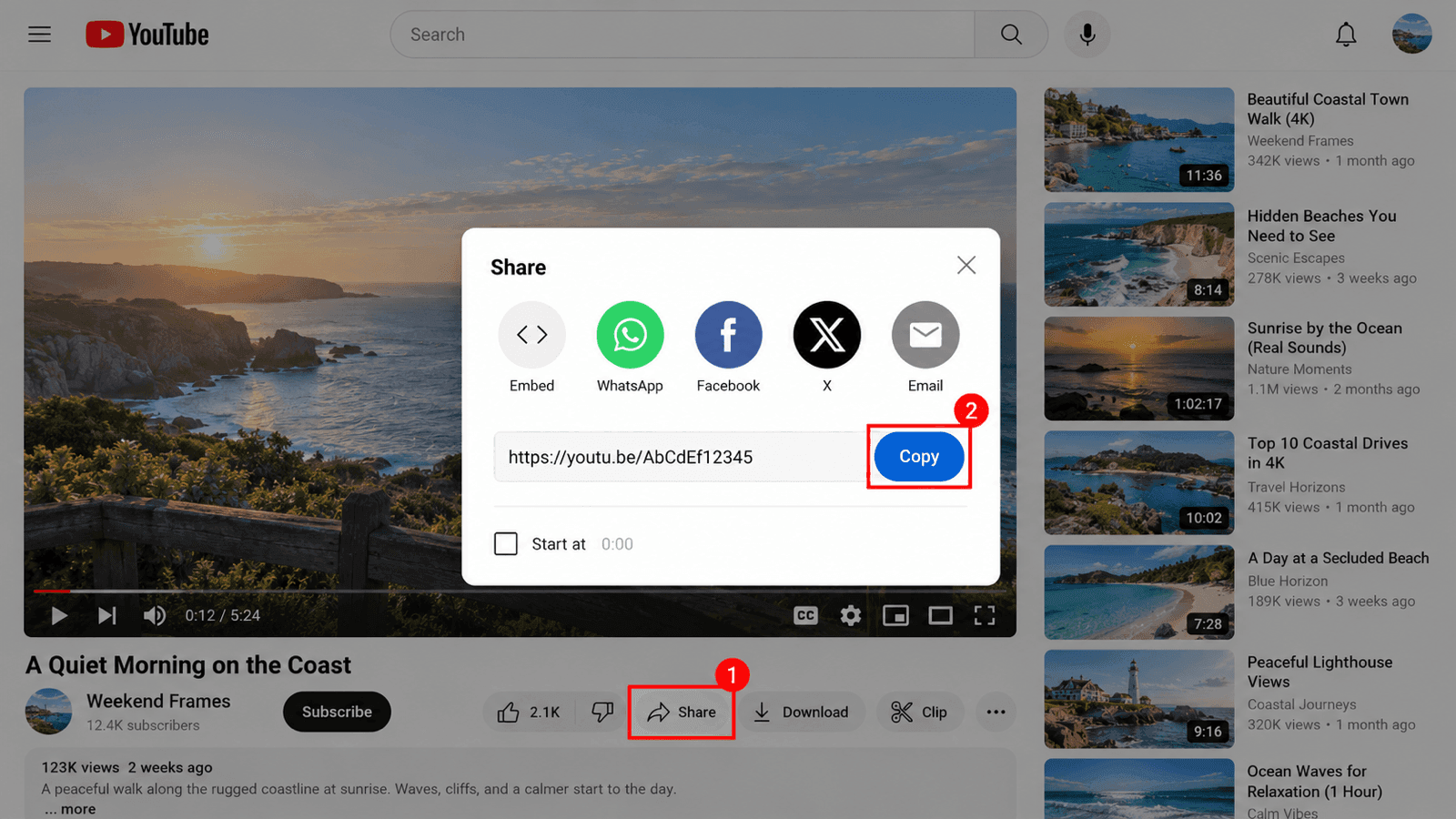
YouTube on the web: click Share, then click Copy in the dialog.
Copying the video's address bar is another option. YouTube's sharing panel can also create a link to a particular moment: select Start at, set the time, and copy the link. See YouTube's desktop sharing instructions.
Mobile
- Open the video in the YouTube app.
- Tap Share below the video player.
- Select Copy link.
- Paste the copied URL into a message or another text field.
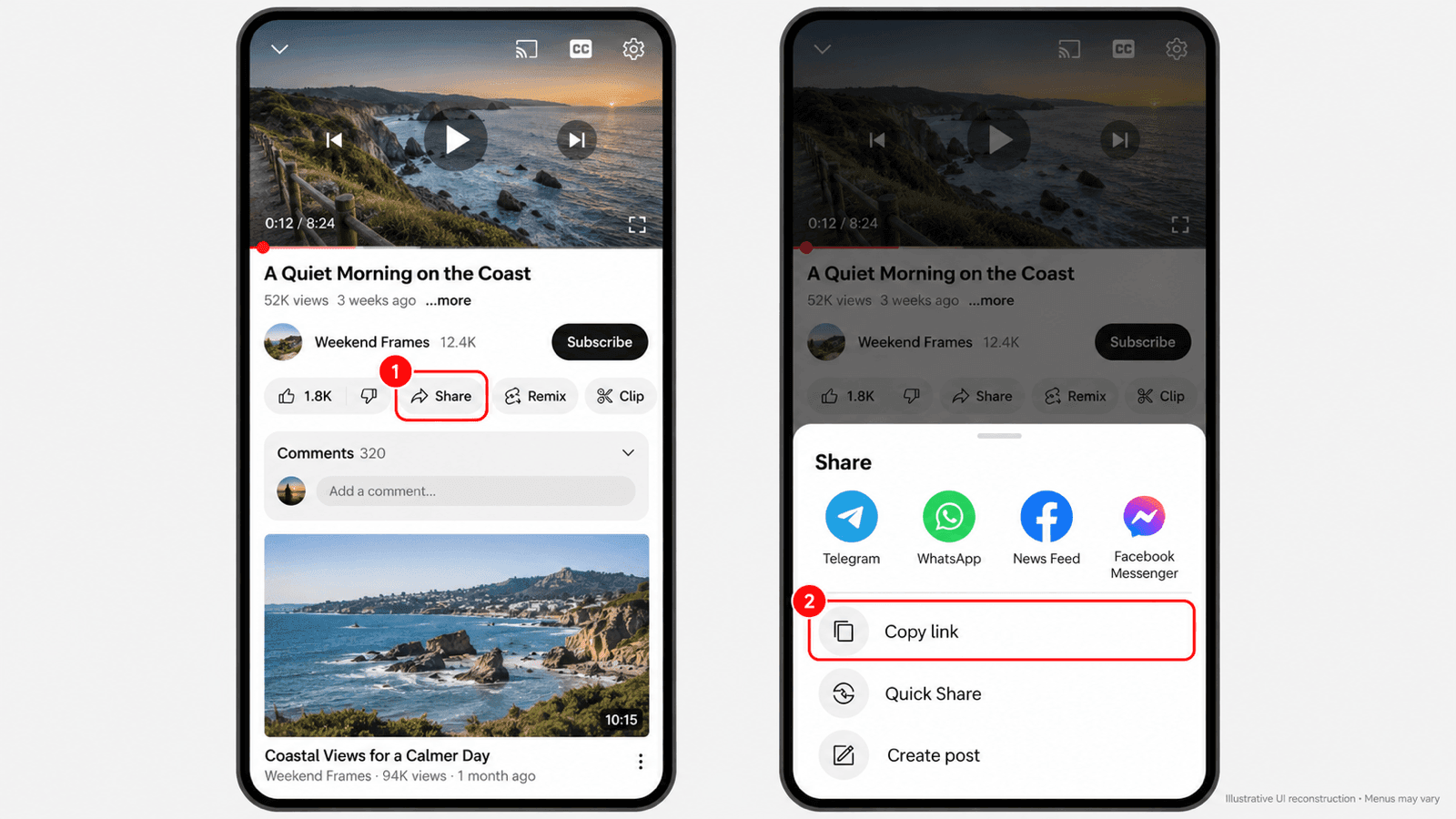
YouTube in the mobile app: tap Share, then select Copy link.
The same basic route appears in YouTube's instructions for Android and iPhone and iPad.
For a YouTube Short, open the Short and use its Share control, then choose Copy link. On the web, you can copy its individual page address.
YouTube links may use youtube.com/watch?v=…, youtu.be/…, or youtube.com/shorts/…. A shorter address alone does not mean you copied the wrong video.
What Should the Link Look Like?
Use these patterns to check whether you copied a content link. The codes and usernames below are illustrative placeholders, not working links.
| Content | Example URL Pattern |
|---|---|
| Instagram post | https://www.instagram.com/p/POST_CODE/ |
| Instagram Reel | https://www.instagram.com/reel/REEL_CODE/ |
| Facebook post | https://www.facebook.com/PAGE_NAME/posts/POST_ID |
| Facebook short share link | https://www.facebook.com/share/p/SHARE_CODE/ |
| TikTok video | https://www.tiktok.com/@USERNAME/video/VIDEO_ID |
| TikTok short share link | https://vm.tiktok.com/SHARE_CODE/ |
| YouTube video | https://www.youtube.com/watch?v=VIDEO_ID |
| YouTube share link | https://youtu.be/VIDEO_ID |
| YouTube Short | https://www.youtube.com/shorts/VIDEO_ID |
Other valid formats exist, particularly on Facebook. The practical check is to open the link and confirm that it brings up the intended post or video.
How to Copy a Link in a Mobile Browser
If you are using Safari, Chrome, or another browser on your phone:
- Open the individual post or video.
- Tap the browser's address bar.
- Select the complete URL and tap Copy. Some browsers also offer a copy action in their share menu.
- Paste it into a text field and check that the complete address is present.
If the site opens its app automatically, use the app's copy-link steps. Before copying from the browser, check that you have opened the content itself, rather than the home feed or a search page.
Troubleshooting Post and Video Links
I Cannot Find Copy Link
Open the content fully, then check its sharing panel and three-dot menu. On mobile, swipe through any horizontal row of sharing actions. If the copy option is still missing, open the content in a browser and copy its individual page address.
The Link Opens a Profile or Feed
You may have copied the address before opening the post. Return to the content, open it, and copy again. On Facebook, try its timestamp; on Instagram and TikTok, open the post from the creator's profile.
The Link Works for Me but Not for Someone Else
Check the content's audience. A link to a private Instagram post, restricted Facebook post, or private TikTok video still requires the appropriate access. Copying a URL does not change who can view it. A deleted post or unavailable video also cannot be restored by copying its link again.
A login prompt alone does not prove that you copied the wrong URL. The recipient may need to sign in or use an account that has access.
A Tool Rejects the Link
First, open the URL in your browser and confirm the content. If a short share link redirects successfully, copy the resulting post or video address and try that. Then check which platforms and content types the tool accepts. A link can work for viewing while being unsupported by a particular tool.
Should I Remove Everything After the Question Mark?
Keep the complete copied link unless you know what each part does. Some query parameters identify the content: the v= value in a YouTube watch URL is the video ID, and Facebook post URLs may also use identity parameters. Removing them can break the link.
Before sending or submitting any URL, paste it into a browser and confirm the creator and the exact post or video it opens.
 M
MMarshall Sun
Building CommentGrid to decode social conversations. Exploring the signal within the noise of the global social web.