9 min read
Scroll through Reels for a minute and you'll spot the pattern: a comment pinned to the first few seconds of the video, and the creator answering it straight to camera. It's one of the cheapest hooks in short-form — borrowed curiosity, zero ad spend.
There are two ways to get one. You can generate a custom sticker and download it as a PNG, which gives you full control over what it says and how it looks. Or you can reply to a real comment with a Reel inside Instagram, which ties your video to an actual conversation. I'll walk through both, then get into the details that decide whether the sticker actually works once it's on screen.
What's in a comment sticker
The format is familiar because it mimics Instagram's own comment UI: avatar, username, the comment text, sometimes a verified badge, a light or dark theme, and a "Replying to" label if it's an answer to someone else.
That familiarity is the whole point. Viewers read it in a split second without thinking about it, which is why it works as an opening frame for tutorials, reaction videos, product demos, and UGC ads. The comment tells the viewer exactly what question the next 15 seconds will answer.
One thing worth knowing up front: a sticker can quote a real comment from your audience, or it can be a mockup you wrote yourself. Both are legitimate. Passing a mockup off as a real person's words is not — more on that later.
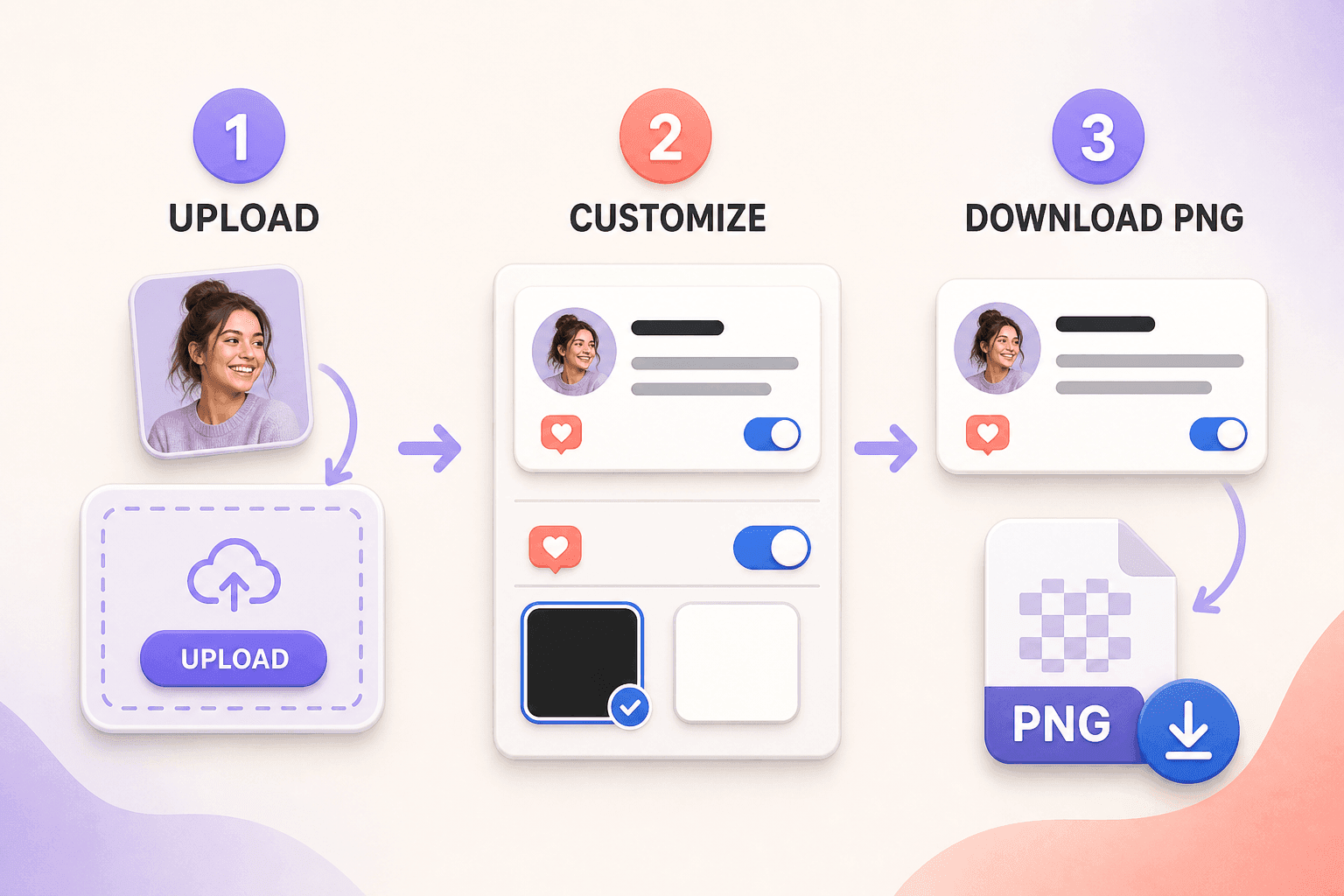
Method 1: Make a custom sticker and download it as a PNG
Go this route when you want to control the design, or when you'd rather build the video in your editor instead of inside the Instagram app.
The fastest way I've found is CommentGrid's free Instagram Comment Sticker Generator. It runs in the browser — no login, no Instagram account connection.
Step 1: Set the avatar and username
Upload an image for the comment avatar, or hit randomize if you just want a quick placeholder. Then type the username you want shown.
Small-screen rule: the avatar gets rendered tiny, so pick something that survives shrinking. A face shot with a clean background, a logo, anything high-contrast. Detailed photos turn into mud at that size.
And if you're writing a fictional comment rather than quoting a real follower, give it a fictional username and avatar. Never borrow a real account's identity for a mockup.
Step 2: Write the comment
Type in the question or reaction your video answers. From there you can tweak the username, badge style (verified or plain), the white or black theme, and the reply language. The preview updates live as you type.
Keep it short. The generator accepts long text, but your viewer is watching a vertical video at speed — one tight line beats three. Compare these two:
Does this work for small accounts too?
I was wondering whether this works for accounts that don't have a lot of followers yet, or if it's mainly useful for bigger creators?
Same question. The first one reads in a second; the second one gets skipped.
Step 3: Download the PNG
Give the preview one last check — spelling, line breaks, theme — then hit Download. You get a PNG that's ready to drop into CapCut, Premiere Pro, Final Cut, Canva, or whatever you edit in, as an overlay on top of your footage.
Placement matters more than people expect. Keep the sticker clear of:
- Whoever's speaking — don't park it over a face
- Product details or anything you're demonstrating
- Your captions
- Instagram's own buttons (more on safe zones below)
And leave it on screen long enough to read. A one-line comment needs roughly 2–3 seconds; anything longer needs more.
Method 2: Reply to a real comment with a Reel
Instagram has a built-in version of this. When you reply to a comment on a public Reel with a new Reel, the app automatically turns the original comment into a sticker — avatar, username, and text included.
Per the Instagram Help Center, here's the flow:
- Tap Reply under the comment.
- Tap the recording icon on the left.
- Record a new Reel or pick a video from your gallery.
- Tap the sticker to change its background color, or press and hold to drag it somewhere else.
- Edit, tap Next, post.
The original commenter gets a notification, and viewers can tap through the username under your Reel to see the original thread. So if the point of your video is "a real person asked me this," the native reply does that job better than any mockup.
There is one catch worth remembering. Instagram says that if the original comment or Reel gets deleted, your reply Reel can go with it. A PNG you made yourself is yours — it doesn't depend on somebody else's comment staying up.
Which one should you use?
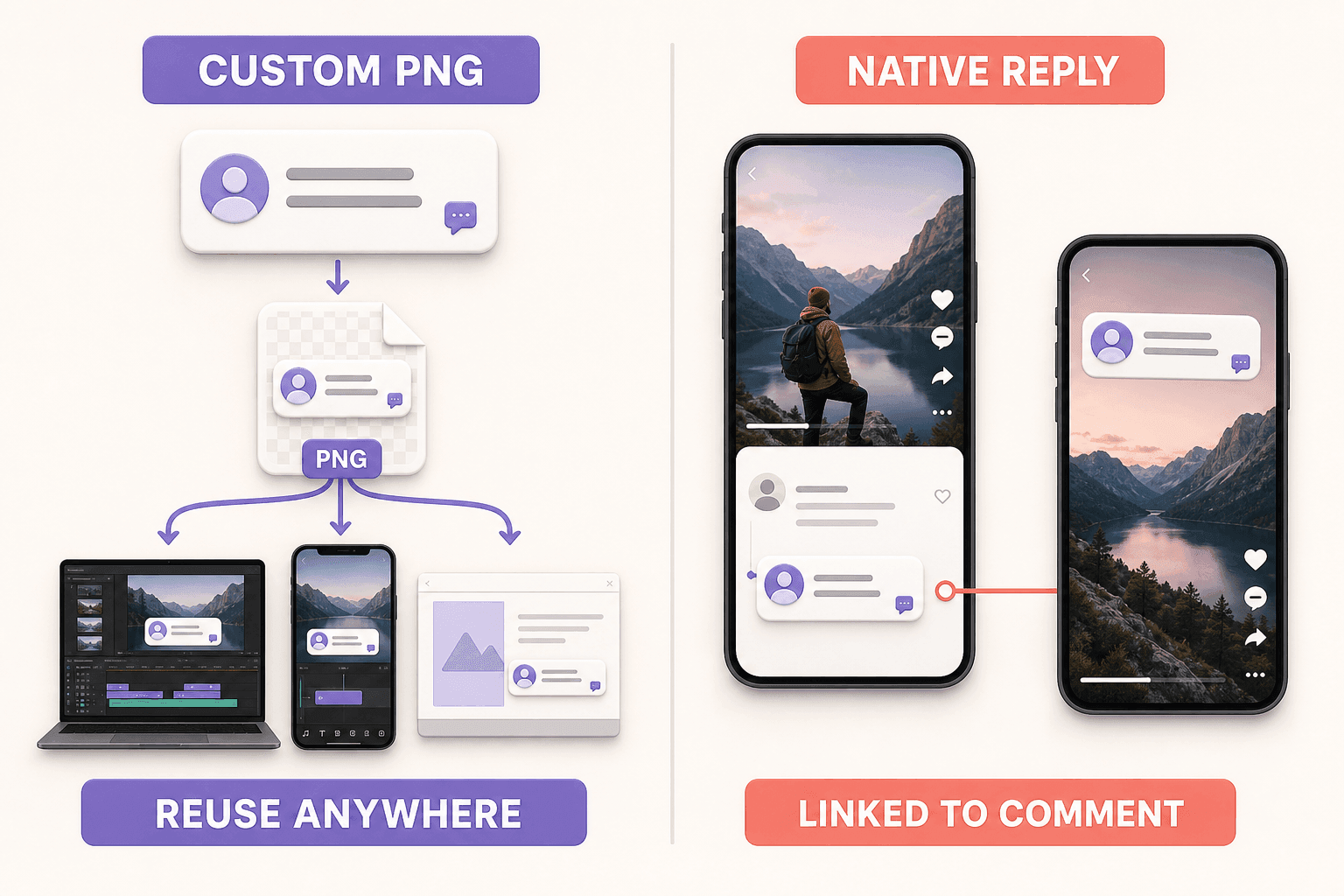
| Custom PNG | Native Instagram reply | |
|---|---|---|
| Needs an Instagram login | No | Yes |
| Needs a real comment to exist | No | Yes |
| You choose the username and avatar | Yes | No |
| You write the comment text | Yes | No |
| Color control | Full | A few presets |
| Works in outside editors | Yes | No — built in the app |
| Links back to the original comment | No | Yes |
| Survives if the source comment is deleted | Yes | No |
The short version: responding to an actual public comment and want the receipt? Use the native reply. Need to prep the video in an editor, localize the reply label, control the badge and theme, build a mockup for a pitch deck, or reuse the graphic in a static post? Make the PNG.
Getting the sticker to actually work in the Reel
Making the graphic takes under a minute. What separates a hook that holds viewers from one that gets swiped past is how you use it.
Open with it, and answer immediately. Put the comment in the first second or two, then respond. If the sticker says "Is this tool really free?", your first spoken line should be the answer: "Yes — and you don't need to connect your Instagram account." The viewer knows within three seconds what they're watching and why.
Pick questions that fit on one line. The ones that perform are short questions, objections, and reactions:
- How did you make this?
- Does this work on Reels?
- Can I use this without an account?
- Is there a free version?
If a real comment runs long, quote the part that matters and answer the rest in the video. Trimming for length is fine; changing what the person meant is not.
Match the theme to the footage. White sticker on dark clips, black on bright ones. If your background shifts mid-video — say, you cut from an indoor shot to daylight — add a soft shadow or outline behind the sticker in your editor. Being readable beats being pretty.
Respect Instagram's UI. The Reels player crowds the bottom and right edge of the screen: caption, profile info, like/comment/share buttons, audio attribution. Keep your sticker out of that zone, and always preview the finished video on an actual phone before posting. What looks fine on a desktop monitor gets eaten by the interface on mobile.
Be careful with the verified badge. It's there for mockups and fictional examples. Using it to imply a real person or brand said something they didn't is where creators get in trouble. If the comment is invented, say so in the caption or the video itself.
Five ways creators use comment stickers
FAQ series. Every repeated question in your comments is a video idea. Answer one per Reel and you've got a series that basically writes itself.
Product demos. Open on the question — "Does it work with X?", "How long does setup take?" — then show the answer instead of telling it.
Tutorial hooks. "Here's a tutorial" is a skip. Opening on a specific comment like "How do I add this effect in CapCut?" gives the tutorial a reason to exist.
Customer feedback. With the commenter's permission, turn a good question or reaction into a response video. Keep their meaning intact, and don't dress up invented praise as a testimonial.
Mockups. Designers and marketers use custom comment stickers to show how a campaign or Reel concept will look before anything goes live. Cheaper than building the real thing.
Mistakes that kill the effect
Writing a paragraph instead of a comment. A wall of text at second one is a swipe. One question, one reaction, that's it.
Covering the thing people came to see. Check the sticker against faces, captions, and the product itself — not just in the first frame, but everywhere it stays on screen.
Flashing it for half a second. If viewers can't finish reading the comment, the hook never lands. Longer text, longer screen time.
Vague questions. "Tell me more" tells the viewer nothing. "Can I export the finished sticker as a PNG?" promises a specific answer, and specific is what keeps people watching.
Faking endorsements. Don't put words in a real person's mouth — no real usernames, photos, or badges attached to statements they never made. Fictional mockups are fine as long as they're clearly fictional.
FAQ
Can I make an Instagram comment sticker without an account? Yes — that's the point of the generator. It runs in your browser with no Instagram login. You only need an account for Instagram's own comment-reply feature.
Can I download the sticker as a PNG? Yes. Customize it, hit Download, and the Instagram comment PNG saves straight to your device.
Can I use it in CapCut? Sure. Import the PNG into your project as an image overlay, then resize it, drag it into position, and set how long it stays on the timeline.
Can I use a comment sticker in UGC videos? Yes — it's a common way to open UGC ads and product demos. Just disclose fictional comments, and never present invented statements as real customer testimonials.
Is a generated sticker a real Instagram comment? No. It's a visual mockup. Nothing gets posted, and it doesn't link to any profile or thread.
Can I reply to a real comment with a Reel? Yes, as long as it's a comment on a public Reel. Instagram's native reply turns the original comment into a sticker automatically.
Make yours now
You don't need to rebuild the comment UI in a design tool. Open CommentGrid's free Instagram Comment Sticker Generator, set the avatar, username, comment, badge, theme, and reply language, and download the PNG. No login — you'll have the sticker before your coffee cools.
 M
MMarshall Sun
Building CommentGrid to decode social conversations. Exploring the signal within the noise of the global social web.