8 min read
Remember a useful question under an Instagram Reel but can't find it again? Or need to check what a particular person wrote under your giveaway post?
You can search Instagram comments by exporting the available comments and using the search or filter controls in a spreadsheet. With CommentGrid, download a CSV, XLSX, or JSON file from a supported public post or Reel, then search that file for a keyword, phrase, or username.
The search happens in your downloaded file. CommentGrid currently handles the export; it does not offer a built-in comment search box.
How to Search Instagram Comments

For a public post or Reel, follow these steps:
- Copy the link to the individual Instagram post or Reel.
- Open the Instagram Comment Extractor, paste the link, and start the export.
- Review the returned data and download CSV or XLSX for a spreadsheet, or JSON for a structured-data viewer.
- Open the file and search Comment Text for words or phrases, or filter Username to find comments by a particular account.
You are searching the records included in that export. It does not search every post on Instagram or provide someone's complete comment history.
For file-opening instructions, see how to export Instagram comments. The sections below focus on finding the right matches once you have the file.
Find the Right Columns in Your Export
The following column names come from an actual CommentGrid Instagram XLSX export. Check the headers in your own file before applying a filter.
| Column | Field | What It Contains |
|---|---|---|
| A | Comment No. | The record's sequence number in the export. |
| B | Comment ID | The identifier for the comment or reply. |
| C | Username | The username of the account that wrote the comment. |
| D | Profile URL | A link to the author's Instagram profile. |
| E | Date | The date and time recorded for the comment. |
| F | Likes | The like count recorded for that comment. |
| G | Comment Text | The comment or reply text to search. |
| H | Comment Link | A link to the comment or its thread. |
| I | Parent Comment ID | The parent comment's identifier when the row is a reply. |
| J | Is This a Reply | Yes for a reply or No for a top-level comment. |
| K | Number of Replies | The reply count recorded for that comment. |
In this sample, the Comments worksheet has the column headers in row 7, with records starting in row 8. The rows above the table include Exported by, Source URL, and Timezone. Select the table from its actual header row when adding filters; leave the metadata outside the filter range.
The sample's Date values are stored as text. If you also want to filter by date, confirm the date format and the workbook's timezone label before converting them to spreadsheet dates. Keep long comment IDs as text.
Search Instagram Comments by Keyword
Start with a word the commenter likely used. If you remember a question about delivery, try shipping, delivery, or the destination country. An exact sentence is often harder to remember than one distinctive word.
Find One Comment Quickly
Open your CSV or XLSX in Excel, or import it into Google Sheets. Use Find to look for a word or phrase. In most desktop spreadsheet apps, the shortcut is Ctrl + F on Windows or Command + F on Mac.
Move through the matches and check the surrounding row. A search across the whole sheet can match a username or another field as well as the comment itself.
Use this approach when you need to locate one comment. To review a group of related comments, filter the comment-text column instead.
Filter Matching Comments in Excel
- Select the full comment data range, including its header row. In the sample workbook, this is A7:K167; use your own file's last data row.
- Choose Data → Filter.
- Open the filter menu on Comment Text (column G in the sample).
- Choose Text Filters → Contains, enter your keyword, and apply the filter.
Excel will display matching rows while hiding the others. Keep the full table together so each comment stays attached to its author and other fields. Microsoft documents the available conditions in its AutoFilter guide.
Filter Matching Comments in Google Sheets
- Select the full data range, starting with the comment table's headers. If the import preserves the sample's layout, start at row 7.
- Choose Data → Create a filter.
- Open the filter menu on Comment Text.
- Under Filter by condition, choose Text contains, enter your keyword, and apply it.
Clear the filter before starting a different search. If you leave a username filter active, for example, your next keyword search will be limited to that person's rows. Google explains these controls in its filtering guide.
Choose Search Terms That Fit the Question
The examples below are illustrative, not results from a real Instagram export.
| What You Want to Find | Search Terms to Try | What to Check in the Results |
|---|---|---|
| Questions about buying | price, cost, where can I buy | A price mention may be a complaint rather than an intent to buy. |
| Shipping questions | shipping, delivery, Canada | Search related terms separately to catch different wording. |
| Requests for another video | tutorial, part 2, show us | Read the full comment to understand what the viewer wants demonstrated. |
| A particular product | Its name, model number, or a distinctive abbreviation | Check whether people are discussing your product or comparing another one. |
A text search finds the characters you enter; it does not automatically understand the topic. Searching price will miss “How much is it?” A few related searches can produce a more useful review than one broad keyword.
Search Instagram Comments by Username
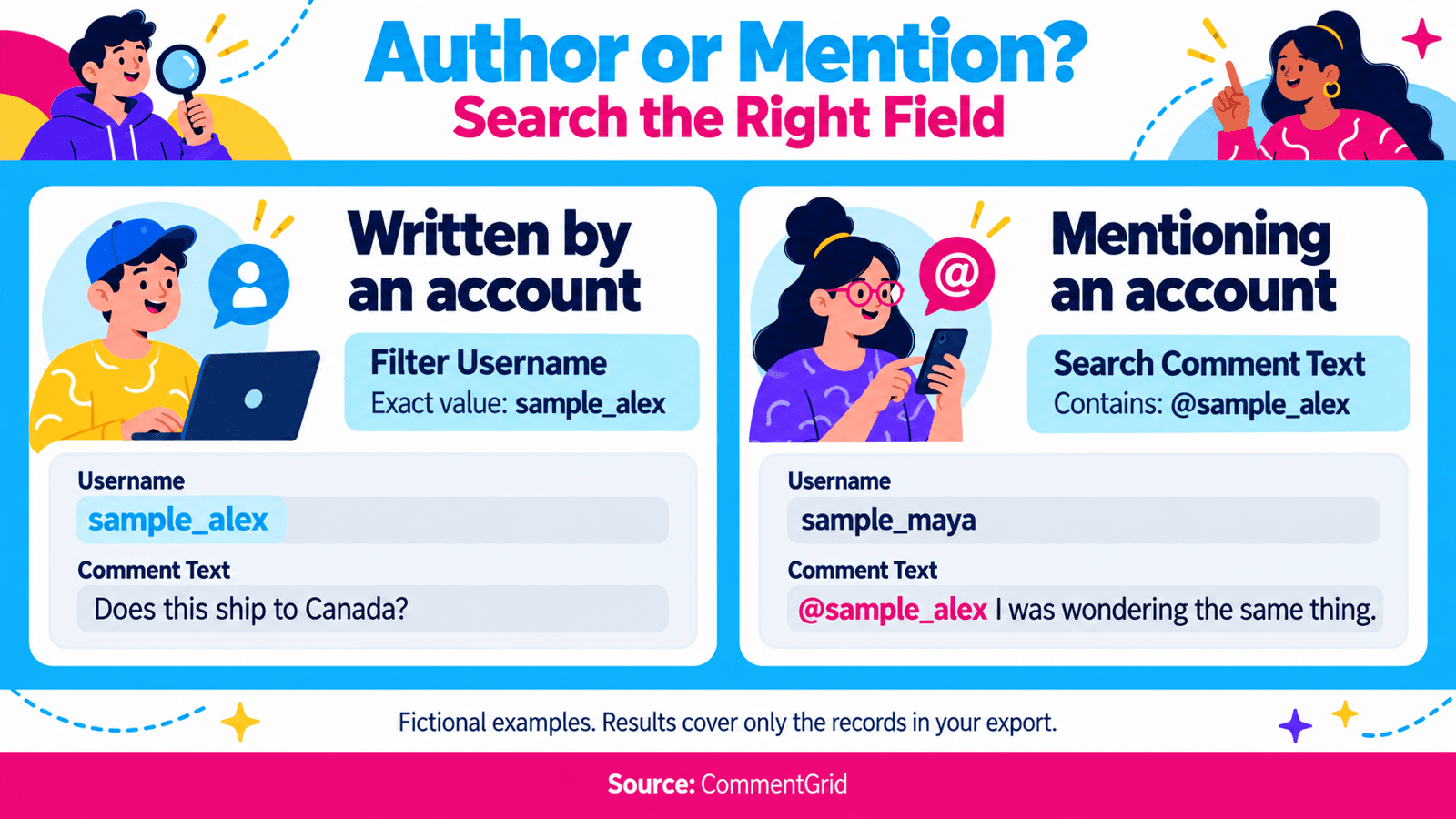
To find comments written by someone, filter Username (column C in the XLSX sample). Searching for their handle in Comment Text finds mentions of that person, which is a different result.
Consider this fictional example:
| Username | Comment Text |
|---|---|
| sample_alex | Does this ship to Canada? |
| sample_maya | @sample_alex I was wondering the same thing. |
| sample_alex | Is the green version available? |
Filtering Username to sample_alex returns the first and third rows. Searching Comment Text for @sample_alex returns the second row, written by someone else.
In Excel or Google Sheets, open the username column's filter and select the exact username from the value list. If you use the filter's search field to locate it, check that only the intended value is selected. A partial search for alex may also show alex_123.
Match the format in your file: if usernames are stored without @, use that form. Use the username field rather than the display name, since different accounts can share a display name.
To narrow the results further, keep the username filter active and add a text filter. For example, filter the author to sample_alex and the comment text to Canada to find the first row above.
Include Replies in Your Search
Search Comment Text with Is This a Reply unfiltered to include both top-level comments and any replies in the file. Select Yes in Is This a Reply when you only want replies.
To find a reply's context, match its Parent Comment ID to the Comment ID of the parent row. In the sample, replies share their parent's Comment Link, so the link may open the thread rather than point directly to the individual reply. Use Comment ID to distinguish records; do not remove rows just because their links match.
Can You Search the JSON Export?
Yes. Open the JSON file in a text editor or JSON viewer and use its search function. Search for a distinctive phrase or username, then inspect the complete record around each match.
A raw text search can match values in different fields. A username mentioned in a comment is not necessarily its author. Some files also represent characters with escape sequences, so a JSON viewer that displays decoded values can be easier to read.
For everyday keyword and username filtering, CSV or XLSX is usually the simpler choice. JSON is useful when you already work with structured data or want to process the records yourself.
Why a Comment Might Not Appear in Your Search
A missing match does not prove the comment was never posted. Check these possibilities before changing your search:
- The wording differs. Try a shorter phrase, spelling variation, or related word.
- You searched the wrong field. Look in author usernames for the writer; look in comment text for a mention.
- Another filter is still active. Clear existing filters and search again.
- The comment is newer than the export. A downloaded file does not update when someone adds another comment.
- The record was not included. Access conditions, export limits, or unavailable comments and replies can affect the returned data. A reply count alone does not mean the reply text is in your file.
The sample workbook already includes Source URL and Timezone above the table. Keep these details and record the export date separately; the Date column refers to comments, not when you downloaded the file. For questions about viewing available public comments, see the Instagram comment viewing guide.
Frequently Asked Questions
Can I Find Every Comment Someone Has Made on Instagram?
No. This workflow finds matching authors within the posts or Reels you exported. Entering a username does not retrieve that account's activity across Instagram. Finding your own past comments across different posts is a separate task from searching one exported conversation.
Can I Search Comments on Instagram Reels?
Yes, using the exported comments from a supported public Reel. Start with the Reel's direct link and search the returned file in the same way as a post export.
Can I Search Several Posts Together?
You can combine separate exports in a spreadsheet yourself. Align the columns and add a source-post column before searching, so you know where each match came from. Repeated exports of the same post may contain duplicate records.
Will This Find Deleted or Private Comments?
It cannot retrieve comments that are unavailable to the export. If a comment was included in an earlier file you saved, you can still search that saved record, even if the live conversation later changes.
Find the Instagram Comment You Need
Export available comments from a supported public Instagram post or Reel, then search by keyword or username in Excel or Google Sheets.
Open Instagram Comment Extractor M
MMarshall Sun
Building CommentGrid to decode social conversations. Exploring the signal within the noise of the global social web.