8 min read
You remember a viewer asking about the microphone in a video, but scrolling through the comments has not brought it back. Or you know who wrote a comment and want to find their replies in the conversation.
To search YouTube comments by keyword or username, export the available comments from the video and filter the comment text or author column in a spreadsheet. The CommentGrid YouTube Comment Exporter provides the downloadable data; you do the searching in Excel, Google Sheets, or another data viewer.
If you manage the channel, YouTube Studio also has a comment search tool. The best route depends on whether you need a phrase, a particular author, or a comment you posted yourself.
Choose the Right YouTube Comment Search Method
| What You Want to Find | Where to Start | Search Scope |
|---|---|---|
| Words or phrases under a public video | Export and filter the comment text | Records returned for that video |
| Comments by a particular account under a video | Filter the exported author information | Authors represented in the file |
| Questions or topics on a channel you manage | YouTube Studio comment search | Comments available in your channel's management view |
| One comment in a short, already loaded thread | Browser Find | Text the browser can currently search on the page |
| A comment you previously posted | Your YouTube Comment History | Your own available public comment history |
Begin with the individual video when you know where the conversation happened. Searching a person's name across a file is much easier to interpret when the file belongs to the right discussion.
Search YouTube Comments With an Export
This workflow is useful when you want to review several matches, combine a keyword with an author, or keep the results for later.
1. Copy the Video URL
Open the public YouTube video and copy its link. Use the individual video's URL, not a channel homepage or a YouTube search-results page.
2. Export the Available Comments
Open the YouTube Comment Exporter, paste the video URL, and select Start Export. Review the returned data, then download a CSV for the spreadsheet steps below.
You are searching what was included in this export. Visibility, reply availability, and processing conditions can affect which records are returned.
3. Open the File and Identify the Fields
Open the CSV in Excel, or import it into Google Sheets using File → Import → Upload. If you downloaded an XLSX workbook instead, open it in Excel or import it into Sheets.
Look for these kinds of information in your file:
| Information | How It Helps Your Search |
|---|---|
| Comment text | Find a word, phrase, product name, or question |
| Author handle or name | Narrow the rows to a commenter |
| Author profile URL | Check which channel the author field refers to |
| Comment URL | Return to the comment or thread when a link is available |
| Publishing time | Add context to a match; check its format before sorting |
| Reply count | Identify threads worth inspecting; it does not prove the reply text is included |
These are field descriptions, not a guaranteed set of literal column headers. Check your YouTube export's actual labels and values before applying a filter. Select the comment table from its header row, leaving any source information above it outside the filter range.
For import and file-format details, see how to export YouTube comments to Excel or CSV.
Search YouTube Comments by Keyword
Choose a distinctive word you remember from the comment. For a recording setup, microphone, a model name, or background noise will give you a clearer starting point than video.
Filter Matches in Excel
- Select the full comment table, including its column headers.
- Choose Data → Filter.
- Open the filter menu on the column containing comment text.
- Choose Text Filters → Contains.
- Enter your word or phrase and apply the filter.
Excel hides nonmatching rows while keeping each matching comment beside its author and source fields. Microsoft's AutoFilter guide explains text conditions and filtering by values.
Filter Matches in Google Sheets
- Select the full table, starting at its header row.
- Choose Data → Create a filter.
- Open the filter menu on the comment-text column.
- Select Filter by condition → Text contains.
- Enter your search term and apply it.
Google's filtering guide covers these controls. Clear an old filter before starting an unrelated search; an active author filter will limit the keyword results to that author.
Try Related Wording
A spreadsheet text filter looks for the text you enter. Searching microphone will miss a comment that says only “Which mic is that?” Try related terms separately, then read the complete comments before grouping them together.
For example:
| Search Goal | Terms to Try |
|---|---|
| Identify questions about audio | microphone, mic, audio, noise |
| Find requests for a follow-up | part 2, tutorial, next video |
| Locate product feedback | The product name, model number, or feature name |
These examples are search ideas, not findings from a real export. A match can be a question, a recommendation, or a complaint, so the surrounding sentence matters.
Search YouTube Comments by Username or Handle
When people search for a YouTube “username,” they may mean a channel name or an @handle. YouTube defines handles as unique channel identifiers, distinct from channel names. See YouTube's handle guide.
To find comments written by an account, filter the author column. To find comments mentioning that account, search the comment text. Those searches answer different questions.
The following fictional rows use simplified labels for illustration:
| Author | Comment |
|---|---|
| @samplealex | Which microphone did you use outside? |
| @samplemaya | @samplealex I think it is listed in the description. |
| @samplealex | The wind test was helpful. |
Filtering the author to @samplealex returns the first and third rows. Searching the text for @samplealex returns the second row, which someone else wrote.
Select the Exact Author Value
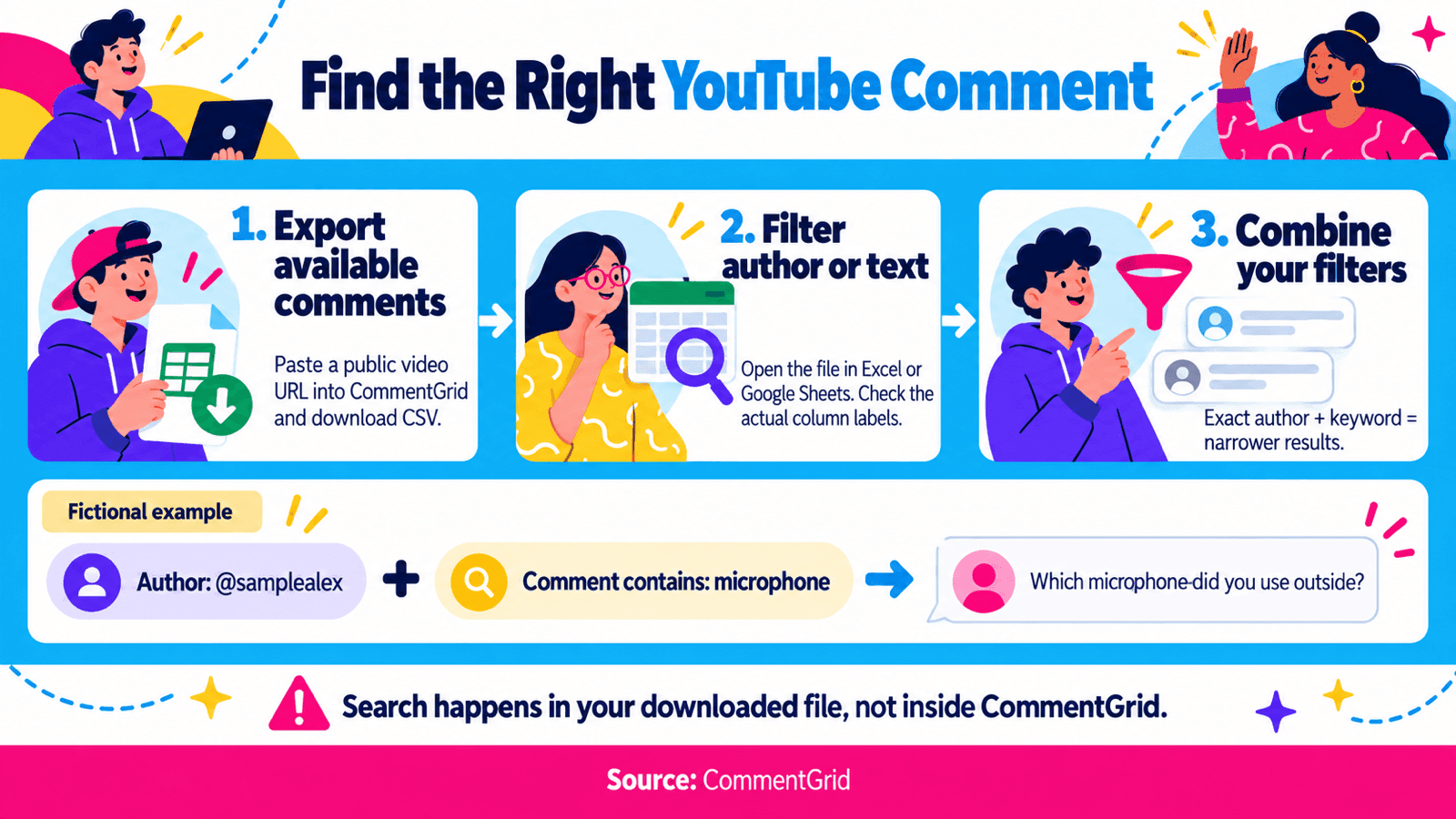
- Check how the author appears in your export: handle, channel name, or another returned label.
- Open that column's filter and select the exact value.
- If you use the filter's search box to find the value, check that similarly named entries are not also selected.
- Use the author profile URL, when present, to confirm the channel.
Match the file's formatting, including whether the handle includes @. If the file contains only channel names, a name match alone may not establish that two rows belong to the same channel.
To combine author and keyword searches, leave the author filter active and add a text condition. In the example above, selecting @samplealex and filtering the comment text for microphone leaves only the first row.
Search Comments in YouTube Studio
For a channel you manage, try Studio's built-in search on a computer:
- Sign in to YouTube Studio.
- Select Community from the left menu.
- Choose the relevant tab, such as Published or Held.
- Open Search in the filter options and enter a keyword or topic.
YouTube's current desktop search supports both keyword matching and topic or meaning-based results. Its documentation distinguishes keyword matches across comments from topic and similar-comment searches covering the last 90 days. It also states that this tool cannot search for comments from specific users. See YouTube's comment search instructions.
Use Studio to find conversations you want to answer or moderate. For an exact author-and-phrase combination in exported data, use the spreadsheet filters above.
Can You Use Ctrl + F to Search YouTube Comments?
For a quick check on a computer, open the video's comments, load more of the thread, and expand relevant replies. Then press Ctrl + F on Windows or Command + F on Mac and enter a word or handle.
Browser Find searches page text available to it. It does not request every comment from YouTube, and it may miss comments or replies that have not loaded. It can also match text in the title, description, or other parts of the page.
Use this for a short thread or a comment you have just seen. A zero-result browser search is not evidence that the comment was never posted.
Why You Might Not Find a Comment
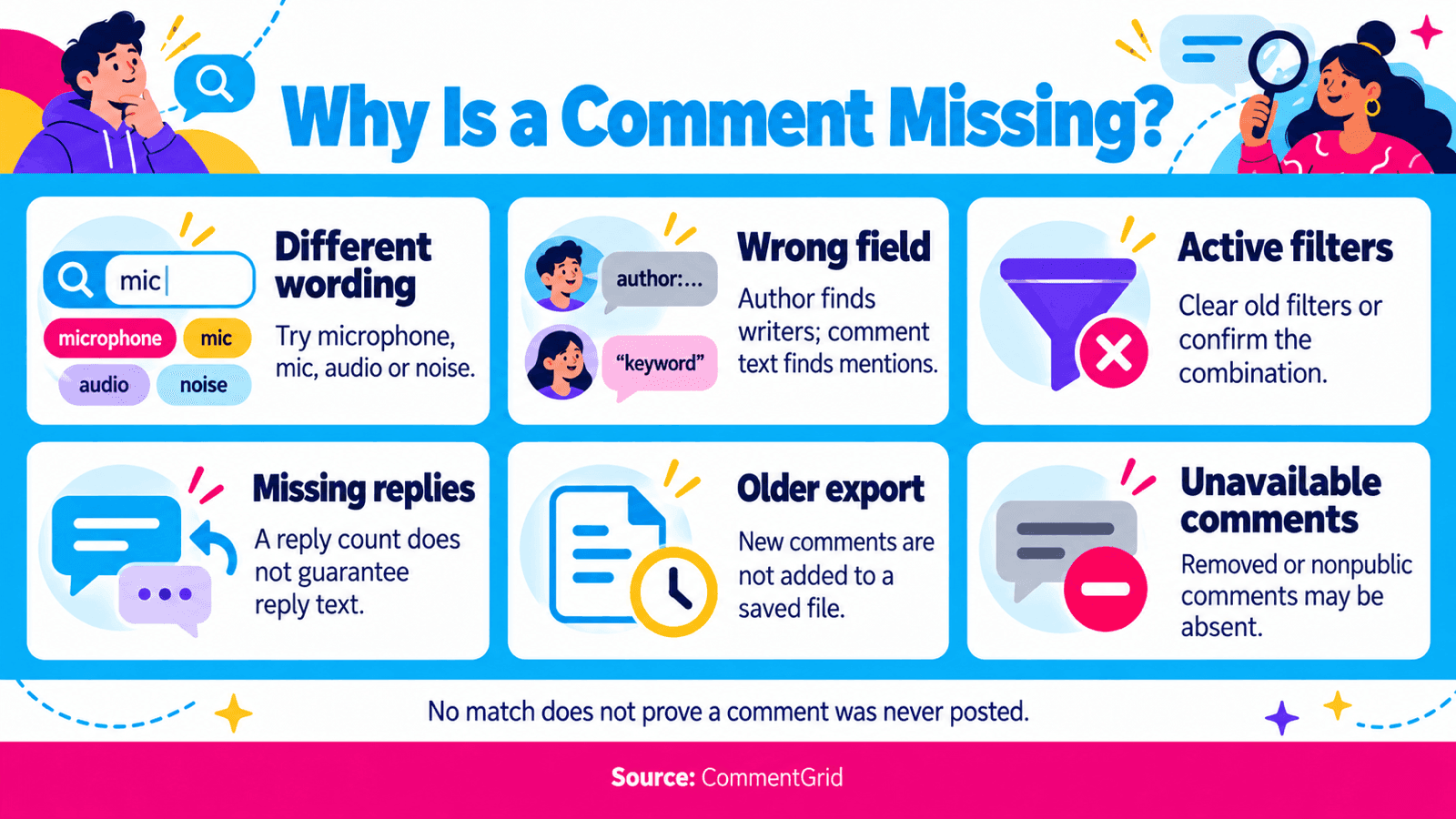
Before changing your search method, check the following:
- Different wording: Try a shorter phrase, an abbreviation, or a related term.
- Wrong field: Search the author field for the writer and the comment text for mentions.
- An active filter: Clear other filters, or confirm that you meant to combine them.
- Missing reply text: A parent comment's reply count does not guarantee that replies are present as searchable records.
- An older export: New comments added after the download will not appear in that file.
- Unavailable comments: A comment may have been removed or may not be publicly visible.
For channel owners, held comments need to be reviewed in Studio; YouTube says they are not public until approved. A public export should not be treated as a copy of that moderation queue. See YouTube's comment settings guide.
When you find the comment, save its available source link with your notes. YouTube also lets you select a comment's timestamp to create a highlighted link to the comment and thread. Its comment viewing guide explains how to keep that reference.
Frequently Asked Questions
Can I Find Every Comment Someone Has Made on YouTube?
This workflow searches the videos you exported. It does not retrieve another person's complete activity across YouTube. Entering a handle in YouTube's main search can help find the channel, which is a different task from searching its comments.
How Do I Find a YouTube Comment I Posted?
Start with your own Comment History, linked from YouTube's history instructions. Select an entry to return to its original location. Comments on deleted videos and comments removed by YouTube for policy violations do not appear in that history.
Can I Search Comments From Several Videos Together?
Yes, you can combine separate exports in a spreadsheet yourself. Align the columns and add a source-video URL to each row before merging. Keep an export date as well, and account for duplicate records if you exported the same video more than once.
Can I Search a JSON Comment Export?
Yes. Open it in a JSON viewer or text editor and search for a phrase or author value. Inspect the field around each match: a handle in the comment body is a mention, not necessarily the author. A viewer that decodes escaped characters can make text easier to search and read.
Find the YouTube Comments You Need
Export available comments from a public YouTube video, then filter by keyword or author in Excel or Google Sheets.
Open YouTube Comment Exporter M
MMarshall Sun
Building CommentGrid to decode social conversations. Exploring the signal within the noise of the global social web.