7 min read
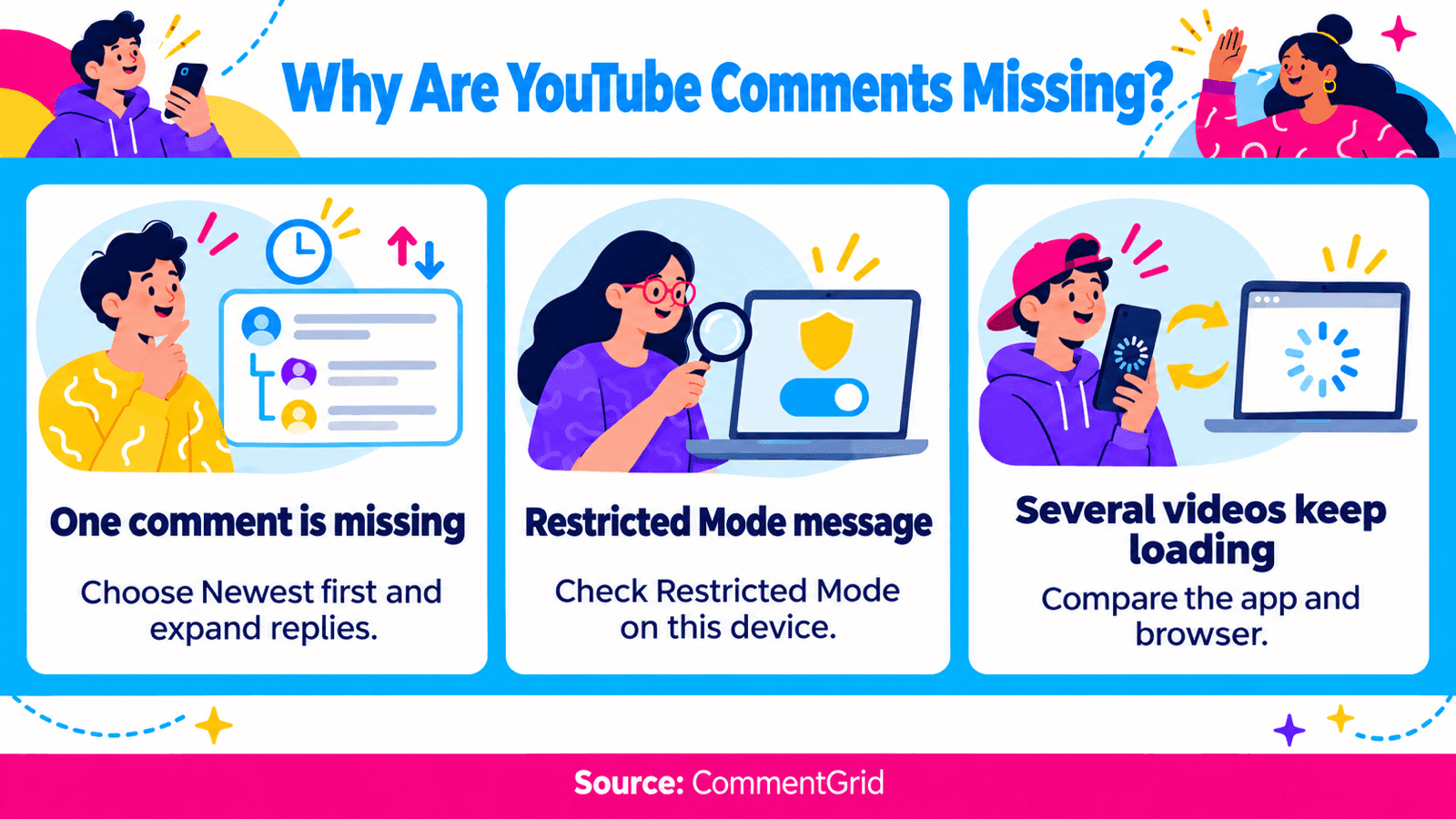
If YouTube comments are not showing, first check whether the whole comment section is missing or just one comment. For one missing comment, switch from Top comments to Newest first and expand its reply thread. If comments are unavailable across videos, check Restricted Mode and compare the app with the website.
Channel owners have another place to look: the moderation queue in YouTube Studio. A comment held there is not public until it is approved.
Find the Right Starting Point
| What You See | Check First | Who Can Act |
|---|---|---|
| The comments panel stays blank or keeps loading | Another video, another connection, and app versus browser | The viewer |
| A Restricted Mode message appears | The mode's setting for that browser or device | The account holder or administrator |
| One video says comments are turned off | The video's comment settings and audience designation | The channel owner |
| Your comment is missing from Top comments | Newest first and the correct reply thread | The commenter |
| Expected comments are missing on your own video | Studio's public and held comments, with filters cleared | The channel owner or moderator |
| A reply count appears, but the replies do not | Expand the parent comment and load more replies | Anyone who can access the thread |
Use the same video and account when comparing devices. A different account can have different access, so that change alone will not tell you whether the app is faulty.
Check Comment Sorting and Replies
YouTube's guidance for missing comments recommends changing the sort order when you cannot find a comment in Top comments.
On the Web
Open the individual video, scroll to the comments, and choose Sort by → Newest first. Load more comments if needed. If you are looking for a reply, expand the parent comment's replies as well.
For a Short, open its comments panel first, then use the sorting controls available there. Checking a different upload of the same clip will lead to a different conversation, so confirm the channel and video URL.
On Mobile
Open the video or Short in the YouTube app and tap the comments area or comment icon. Use the sort control to select Newest first, then expand the relevant reply thread.
If the comment appears under Newest first, it was available in the thread even though you did not find it in the ranked view. If it is still missing, move to the moderation or loading checks below. Sorting cannot restore a removed comment.
Check Restricted Mode
When Restricted Mode is enabled, you cannot view comments on the videos you watch. YouTube documents this in its Restricted Mode help. This setting is separate from a creator turning off comments on one video.
On desktop, open your profile menu and inspect Restricted Mode. In the Android app, use Profile → Settings → General → Restricted Mode. In a mobile browser, look under Profile → Settings → Account. Other app versions can place it elsewhere in settings. If you manage the setting yourself, adjust it as appropriate and reopen the same video.
Restricted Mode works at the browser or device level. A video can therefore show comments on your phone while a browser on another device cannot. A school, workplace, or supervised setup may manage the restriction. If it is locked, contact the person responsible for that setting.
If YouTube Comments Are Not Loading
A loading spinner or empty panel calls for a different check from a message saying comments are disabled.
Compare the Same Video Elsewhere
Try another video with an active comment section. Then open the affected video's direct link in a browser while using the same account.
If only one video fails, inspect that video's controls and reply threads. If several unrelated videos fail in the app but work in the browser, focus on the app. Failure on multiple devices is useful evidence for a support report, but does not by itself confirm a YouTube outage.
Mobile App Checks
Close and reopen YouTube, check for an app update, and restart the device if the problem continues. Where available, compare Wi-Fi with mobile data. Reopen the same comments after each change so you can identify which step helped.
Avoid starting with an app reset or reinstall. Those steps affect more than one comment section and can require you to restore your setup afterward.
Web Browser Checks
Refresh the individual video page, then try a second supported browser with the same account. If the second browser works, compare browser versions and extensions that change YouTube's page or scripts.
Test with a suspected extension paused, then restore its setting afterward. Change one thing at a time. If the panel still fails, save the video URL, browser version, and exact message for feedback.
If Comments Are Missing on Your Own Video
Sign in to the channel that owns the upload. Viewer settings cannot approve held comments or change that video's commenting rules.
Review the Held Queue
Open YouTube Studio's comment-management area, shown under Comments or Community, depending on the interface. Clear search, video, and response filters, then inspect both published comments and the Held queue.
For a legitimate comment in Held, review it and approve it if appropriate. YouTube's spam-management guide explains the review actions. A comment absent from that queue is not automatically recoverable through approval.
Check the Individual Video's Settings
On desktop, use YouTube Studio → Content → select the video → Show more → Comments and ratings. Inspect the current settings and save any intended change. YouTube's comment-setting instructions also describe the mobile route: open your own video in the YouTube app, enter its comments, and open the comment settings.
Check the affected upload directly. Changing your channel's default settings applies to new content; it does not update all existing videos.
Distinguish On, Pause, and Off
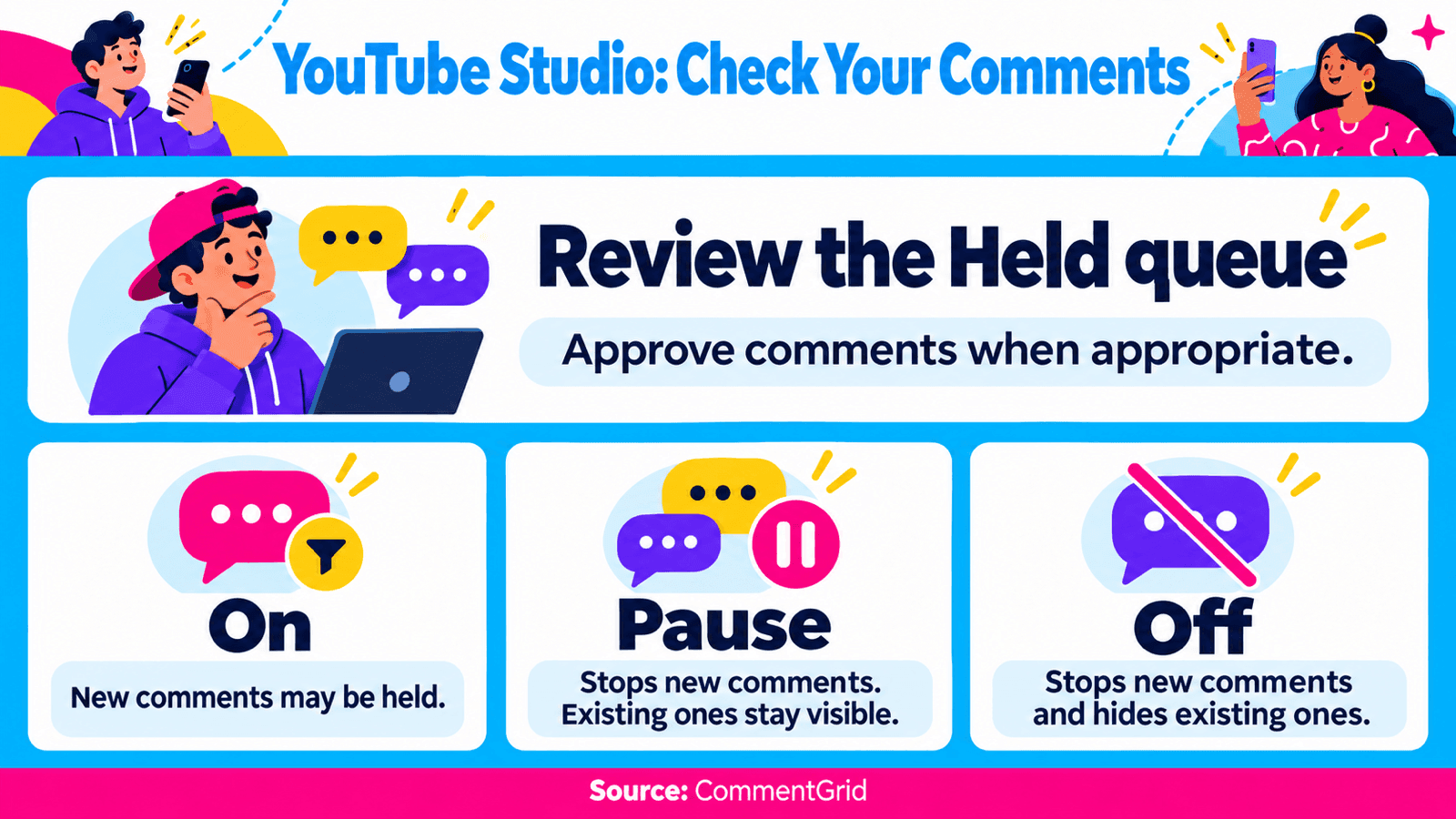
With comments On, the selected moderation level can still hold comments for review. Pause stops new comments while keeping existing ones. Off hides existing comments as well as preventing new ones; turning comments back on restores the previously available comments. These controls are described in YouTube's comment-settings guide.
Also check any blocked words, link filtering, or hidden-user settings relevant to the missing author. Review the specific setting before changing it; you do not need to remove every filter to investigate one comment.
Comments are unavailable on videos designated made for kids and on private videos. Keep the audience designation accurate. Reclassifying a video solely to obtain comments is not a troubleshooting step.
If Your YouTube Comment Disappeared
Check the same video under Newest first and expand the thread you replied to. Save the exact wording of any posting error or removal notice.
The channel may have held or removed the comment, or YouTube may have removed it under its policies. One missing comment does not establish which action occurred. The channel's private review queue is not visible to ordinary viewers.
Do not repeatedly paste the same comment to test visibility. YouTube identifies repeated comments, large posting bursts, and some link-heavy activity as possible spam signals in its missing-comment explanation. If the creator can be contacted appropriately, ask them to check the relevant thread and moderation queue.
When an Export Helps
Once a public video's comments are available, an export can make a long conversation easier to inspect. Use the YouTube Comment Exporter to download returned comments, then search the text or author information in a spreadsheet. The YouTube comment search guide explains that process.
For example, finding a missing-looking response in your downloaded file can help you return to its thread. If it is absent from the file, that alone does not prove deletion: an export only contains the records returned for that request.
CommentGrid cannot open a channel's private moderation queue or recover deleted comments. For file formats and the download steps, see how to export YouTube comments.
Frequently Asked Questions
Why Can I See My YouTube Comment but Someone Else Cannot?
First compare the same video, sort order, and reply thread. Moderation or access differences can also affect visibility. That comparison alone does not prove that the channel hid your account.
Why Are YouTube Replies Not Showing?
Expand replies beneath the parent comment and use any option to load more. If the thread fails to load, compare another device. A reply count does not ensure that every reply is currently available to you.
Does Clearing Cache Restore Deleted Comments?
No. Clearing temporary browser or app data may address a loading problem. It does not reverse deletion, approve a held comment, or change the creator's comment settings.
How Long Does It Take for a Missing Comment to Reappear?
There is no single recovery time. A held comment requires review; a loading problem needs a technical fix; a removed comment may remain unavailable. Follow any specific notice YouTube provides instead of assuming a fixed waiting period.
Keep a Record of Available YouTube Comments
Review public comments in a spreadsheet with CommentGrid. Get higher export limits in desktop Chrome and sign up to receive 300 free credits.
Add CommentGrid to ChromePrefer to try it first? Try the Free YouTube Web Tool.
 M
Marshall Sun
Building CommentGrid to decode social conversations. Exploring the signal within the noise of the global social web.