5 min read

To post a GIF on YouTube, open a video or Short in the YouTube app, tap the comment box, and choose a GIF from YouTube's picker. Use CommentGrid to export the available comment records, or the YouTube Data API to retrieve GIF attachment links.
YouTube's Data API changelog lists November 2026 as the window for availability to all users.
How to Post GIFs in YouTube Comments on iPhone and Android

- Open the YouTube app and sign in. Pick a video with comments enabled.
- Open Comments and tap Add a comment.
- Tap the GIF icon next to the comment field. Use YouTube's picker to browse or search for a reaction, such as “slow clap” or “mind blown.”
- Select a GIF and check the preview.
- Tap the send button to publish. Reopen the thread to check that the GIF appears.
On YouTube Shorts, tap the speech bubble on the right side of the Short, then tap the comment field and look for the GIF icon. The YouTube Help Community walkthrough explains where to find the picker on mobile once it is available to your account.
Why Is the YouTube GIF Button Missing?
Update the YouTube app from the App Store or Google Play and try a different video with comments enabled. Tap into the comment field before looking for the GIF option. If you can see other people's GIFs but still can't find the picker, your account may not have posting access yet. The mobile rollout has been enabled by account, and there's no setting to switch it on manually.
If a GIF keyboard pastes a link into the comment field, it won't create the same attachment as choosing a GIF from YouTube's own picker.
Can You Post GIF Comments on YouTube Desktop?
As of November 4, 2026, YouTube has yet to add official support for posting GIF comments on its desktop website. YouTube Help for desktop comments
How to Export YouTube Comments With CommentGrid
A video can have both written feedback and GIF reactions. If you're putting together a report, start with a spreadsheet of the available comments. Then check any reactions you need to verify in the original thread.
- Open the public YouTube video in desktop Chrome. If you found it on your phone, tap Share, copy the link, and open it on your computer.
- Install CommentGrid for Chrome and open its side panel while the video is active.
- Start a comment export. Review the available records for the fields you need, such as comment text, author, posting time, and likes.
- Choose Excel, CSV, or JSON. Use Excel or CSV to sort and filter comments in a spreadsheet, or JSON to work with structured records in code.
You can also paste a public video link into the YouTube Comment Exporter to try the web workflow and download CSV or JSON. The desktop extension offers higher export limits.
What About GIF-Only Comments?
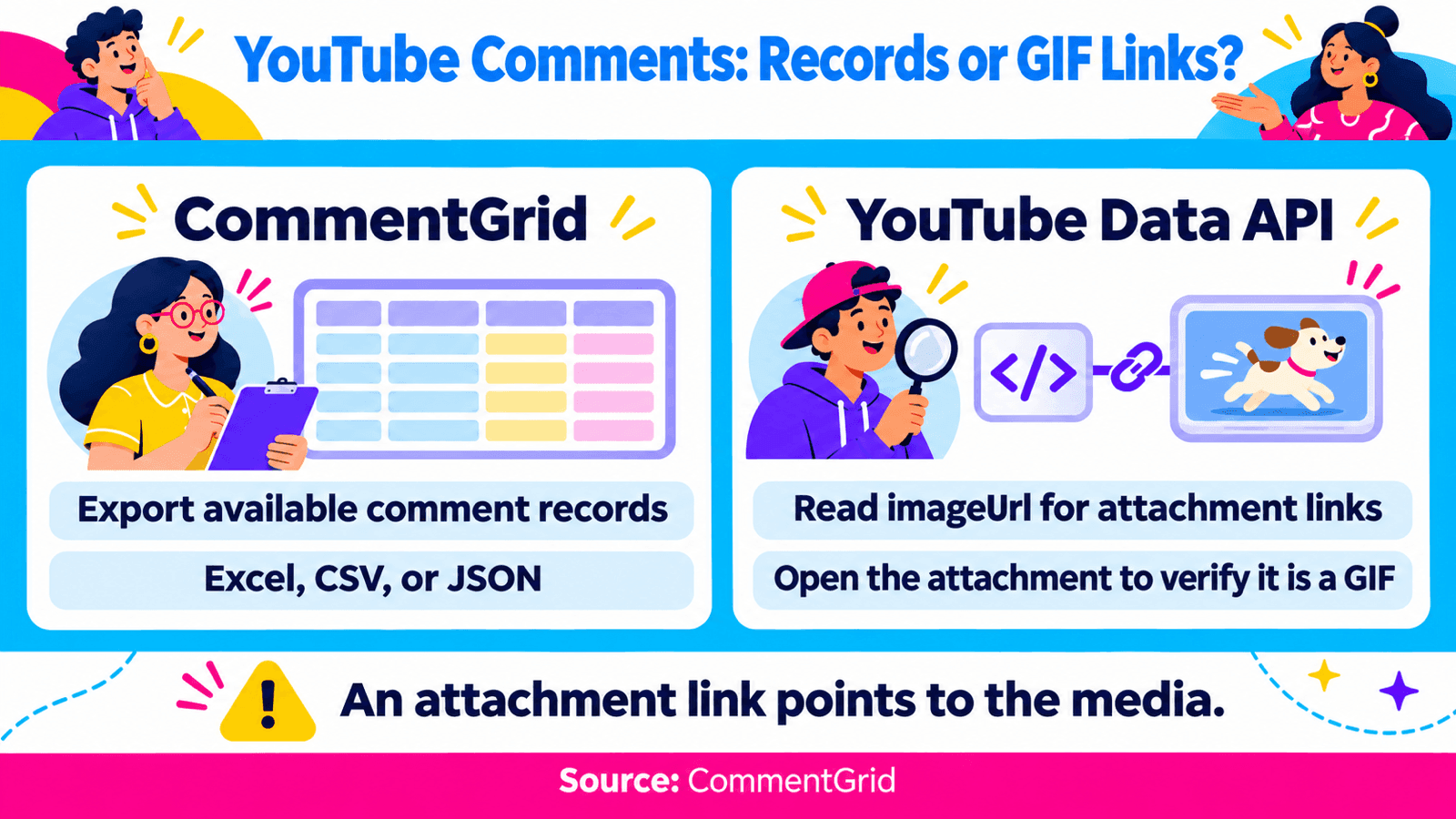
CommentGrid's documented export covers comment records. Don't rely on it to download animated GIF files, include attachment URLs, or capture every GIF-only comment. If a row has no text, use its comment link when available to check the original thread before labeling or removing it. A blank cell alone doesn't tell you what was posted.
For example, if you asked viewers for a GIF reaction to a product reveal, add a Reaction column to your spreadsheet. Open the original comments you want to review and label the visible reactions, such as surprise or applause. Mark anything you can't verify as unreviewed so it doesn't get counted as a reaction you observed.
How to Export GIF Attachment Links With the YouTube Data API
Use this method when you need a list of comments with media attachments or want to open a specific attachment. You'll need YouTube Data API v3 access and the video ID.
- Fetch the comment threads. Open commentThreads.list and use its APIs Explorer to request
part=snippetand the video'svideoId. For more results, pass the response'snextPageTokenback aspageToken. - Find the attachment field. For top-level comments, look at
items[].snippet.topLevelComment.snippet.imageUrl. Pair it withitems[].snippet.topLevelComment.id. If you also need replies, use comments.list withpart=snippetand the top-level comment ID asparentId. Look foritems[].snippet.imageUrlin those results and paginate as needed. - Verify the media before marking it as a GIF. YouTube's comment reference uses the same field for still images and animated GIFs. Open the returned attachment to check which one it is.
- Save the records you need. Copy the comment ID and attachment URL into CSV or JSON. Use the URL while it's fresh: YouTube's signed links expire six hours after retrieval. Keep the comment ID in your working file so you can look the comment up again with
comments.listand itsidfilter.
A URL in a spreadsheet points to the attachment; the spreadsheet doesn't contain the animation. If you need a file you have permission to save, open a fresh link and use your browser's Save image as option if available. Check the saved file type before using it: changing the extension to .gif won't convert another image format.
For a routine comment report, the YouTube comment export guide walks through working with the downloaded rows.
Frequently Asked Questions
Can I Upload My Own GIF to a YouTube Comment?
The posting flow uses YouTube's built-in GIF picker. Search for the reaction inside YouTube rather than pasting an external GIF link or trying to attach a file from your camera roll.
Can I Post a GIF Comment Through the YouTube Data API?
The API documents an attachment URL for reading existing comments. Its method for creating a comment and method for posting a reply don't document a way to attach a GIF. Use the picker in the YouTube app to post one.
Can I Filter a Comment Export to Show Only GIFs?
Use the API's attachment field to narrow the results, then verify which attachments are animated. Searching for the word “GIF” or filtering for blank text in a spreadsheet won't reliably identify GIF comments.
Export More YouTube Comments With CommentGrid
Get higher export limits in desktop Chrome and save available YouTube comments to Excel, CSV, or JSON. Sign up to receive 300 free credits.
Add CommentGrid to ChromeOn your phone or want to try it first? Try the Free YouTube Web Tool.
 M
Marshall Sun
Building CommentGrid to decode social conversations. Exploring the signal within the noise of the global social web.